
This explains how to connect your WhatsApp Flow with Google Sheets in MSGClub using Bot Flow. By setting up this integration, businesses can automatically capture and store user responses from WhatsApp interactions into a structured Google Spreadsheet.
From collecting leads and customer details to managing registrations and feedback, this setup ensures all data is recorded in real-time without any manual effort. It helps streamline workflows, improve data accuracy, and simplify customer data management within a single automated process.
Learn More
Step by Step Guide
Step 1: Sign in to MsgClub using your Username and Password.
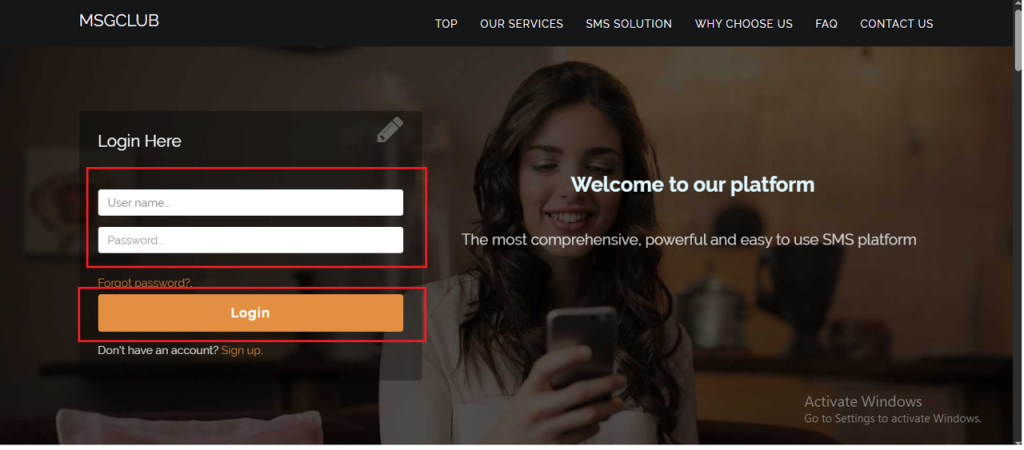
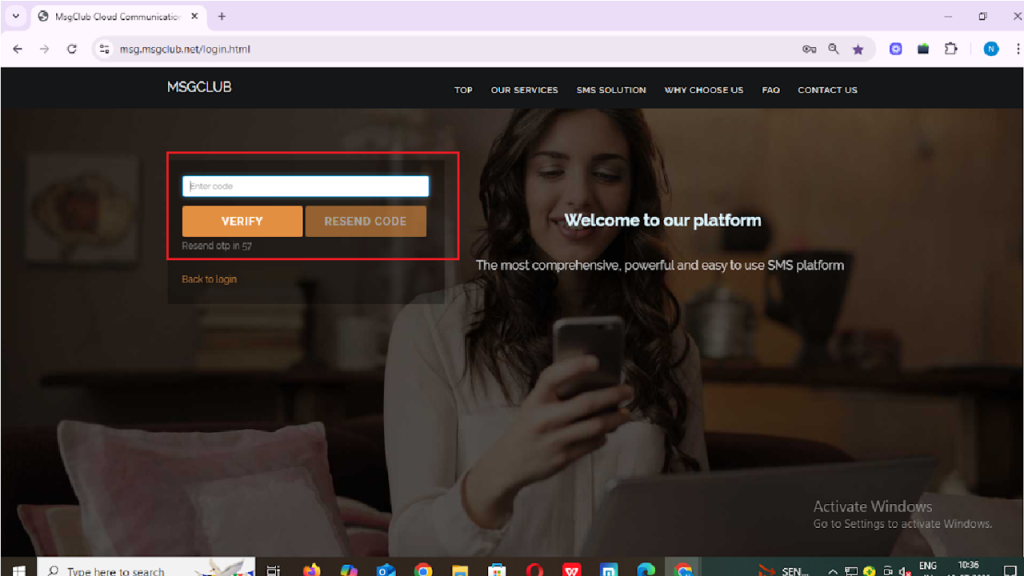
Step 2: You’ll receive an OTP on your registered mobile number. Enter the OTP and click Verify.
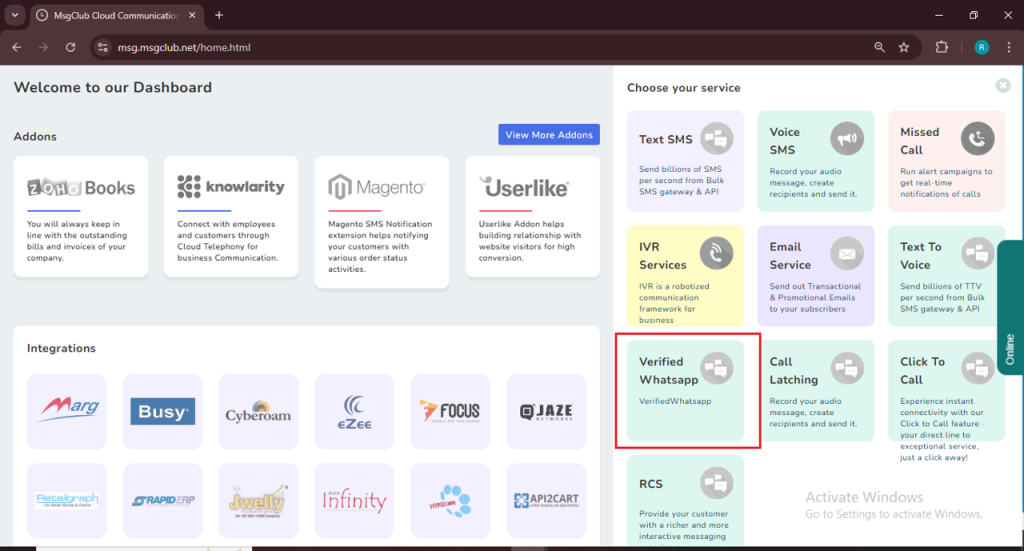
Step 3: From the Dashboard, select Verified WhatsApp Service.
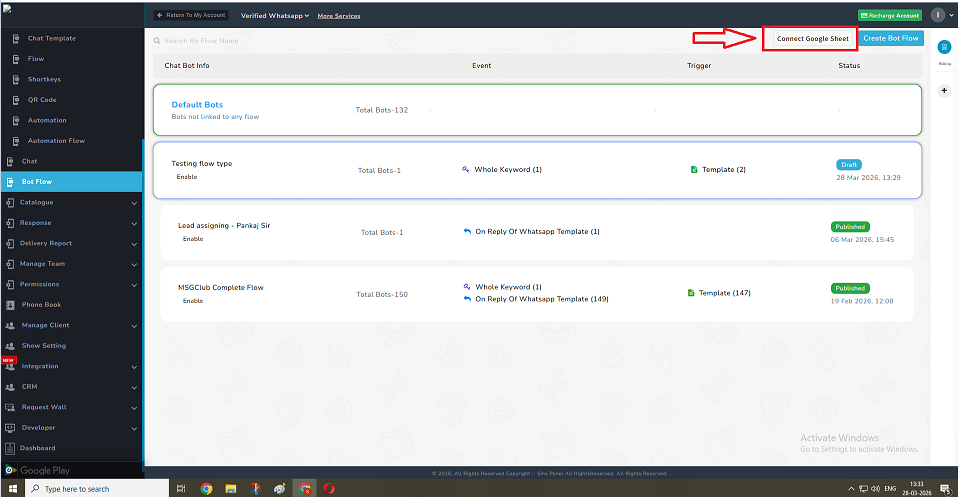
Step 4: From the left-hand panel, click on Bot Flow, and then select the Connect Google Sheet option.
Step 5: To add a new spreadsheet, simply click on the Add Sheet button.
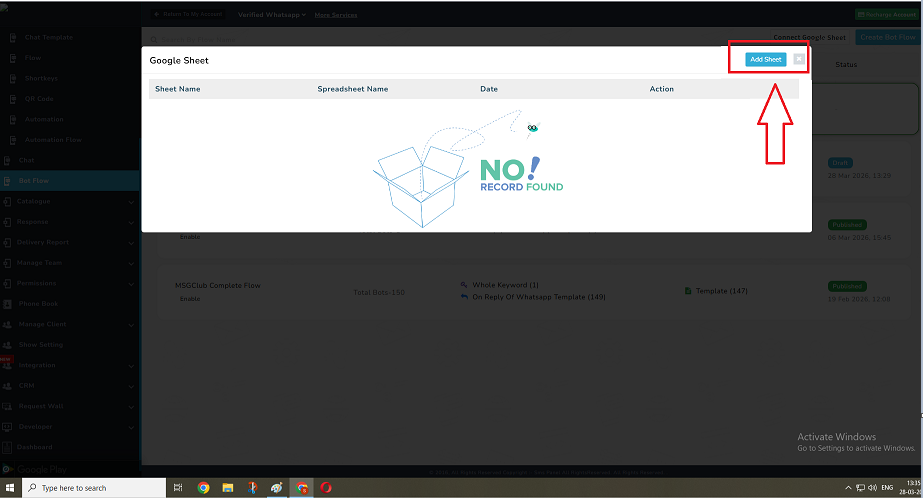
Step 6: Now, copy the URL of the Google Sheet you want to use and paste it into the provided field. Once done, click on the Configure Button to proceed.
Step 7: A Google authentication window will appear. Select your Google account and click Continue.
Step 8: You may see a message saying “Google hasn’t verified this app.” This is a common security prompt. To proceed, click on Advanced.
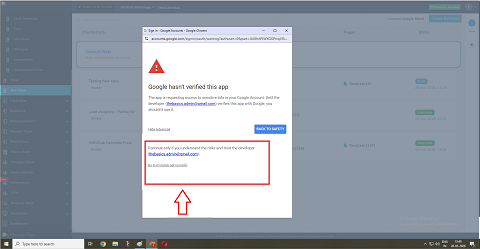
Note: This is a standard Google security prompt for custom integrations.
Step 9: Then choose Go to msgclub.net (unsafe).
Step 10: After that, review the permissions requested and click Continue to grant access.
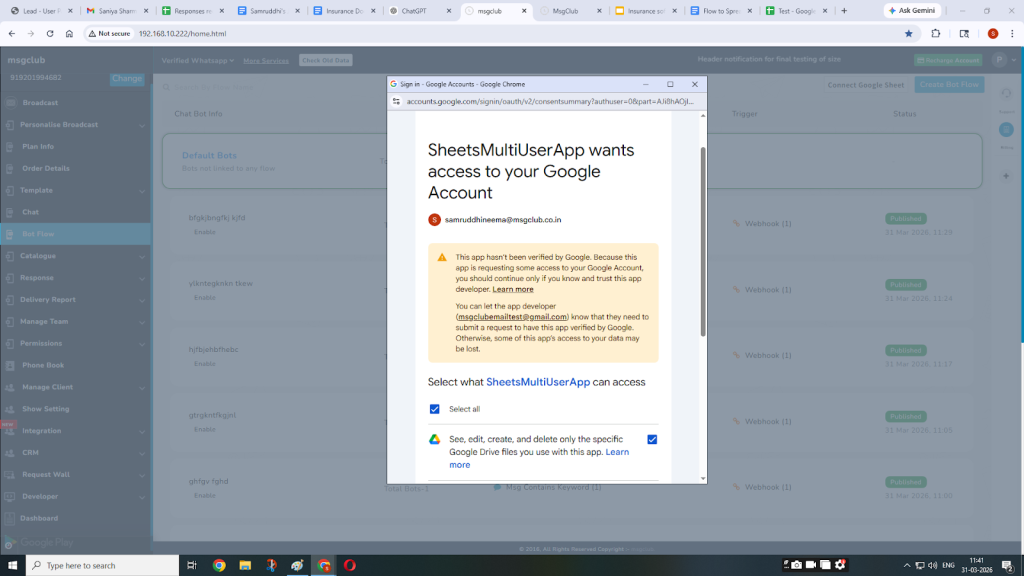
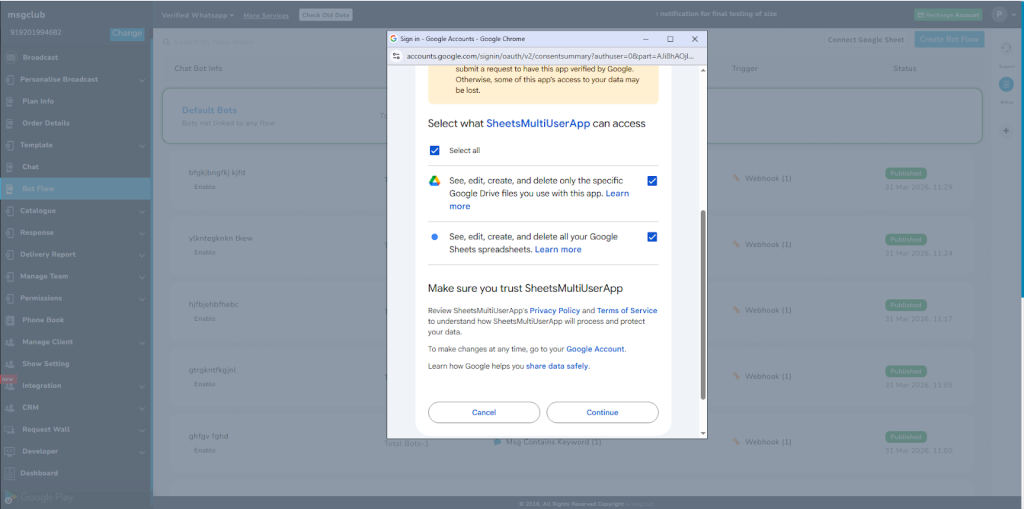
Step 11: Once you complete this step, your Google Sheet will be successfully connected to MSGClub and ready for use.
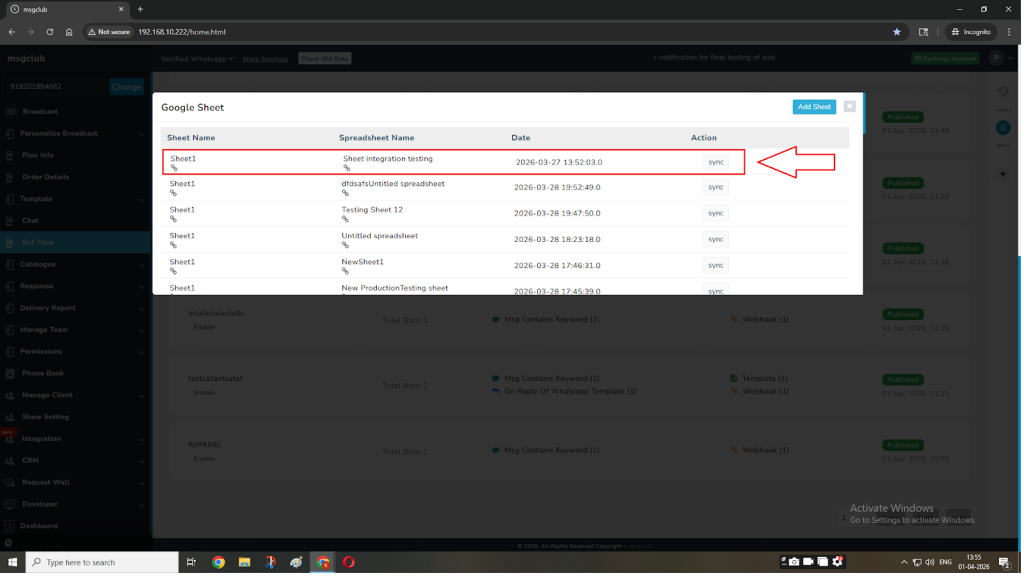
Step 12: After connecting your spreadsheet, the next step is to link it with your WhatsApp Flow.
Start by creating a WhatsApp Flow and then create a Flow Template.
Step 13: Once that is ready, go to the Bot Flow section from the left side panel.
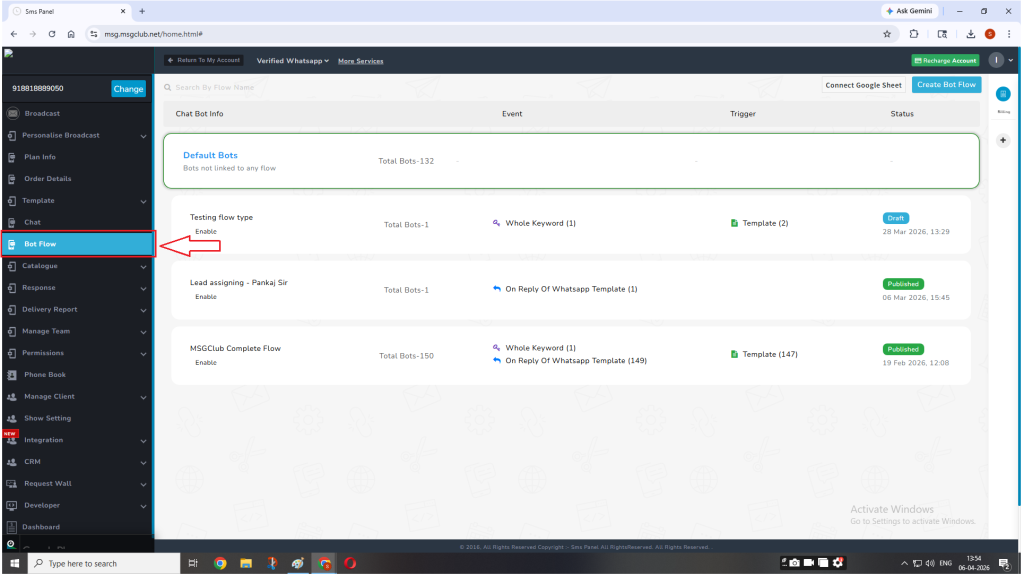
Step 14: Go to the Bot Flow section. You can either:
- Click on Create Bot Flow to start a new one, or
- Open an existing bot flow
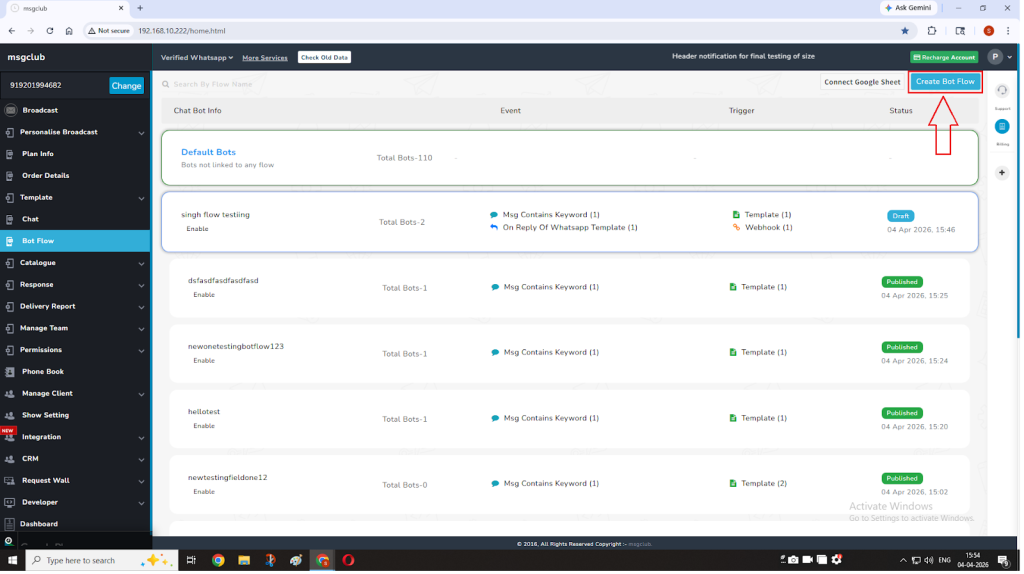
Step 15: A pop-up will appear where you can begin creating your bot flow. In new case, start creating the Bot Flow after adding the flow name on the top left corner of the canvas.
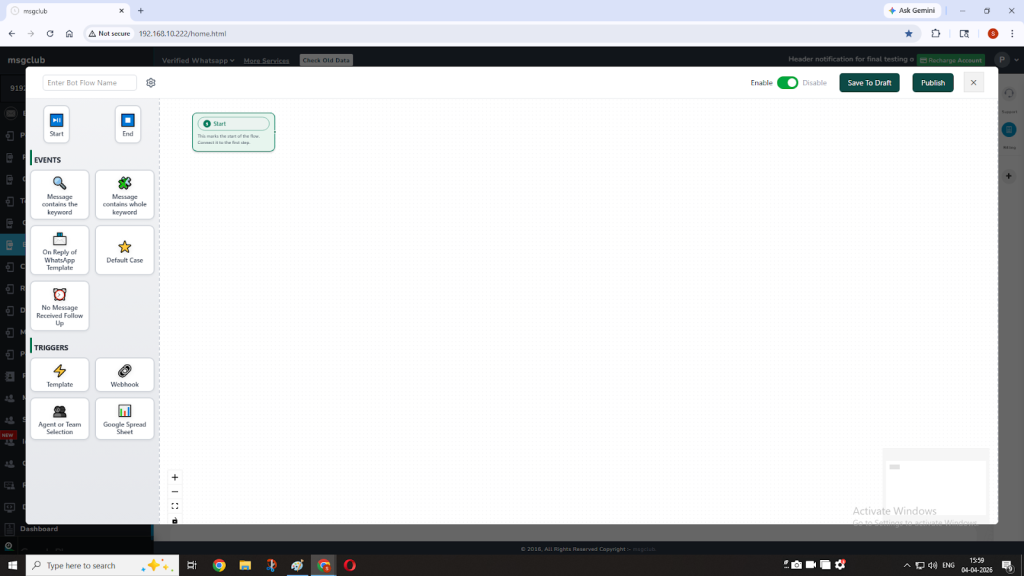
Step 16: First you need to add an Event, and then you will be able to add triggers by clicking on the small dot on the boxes or you may click on the elements to add them to your flow.
Step 17: While adding the trigger in the bot flow, add the required flow template by clicking on the Use It button.
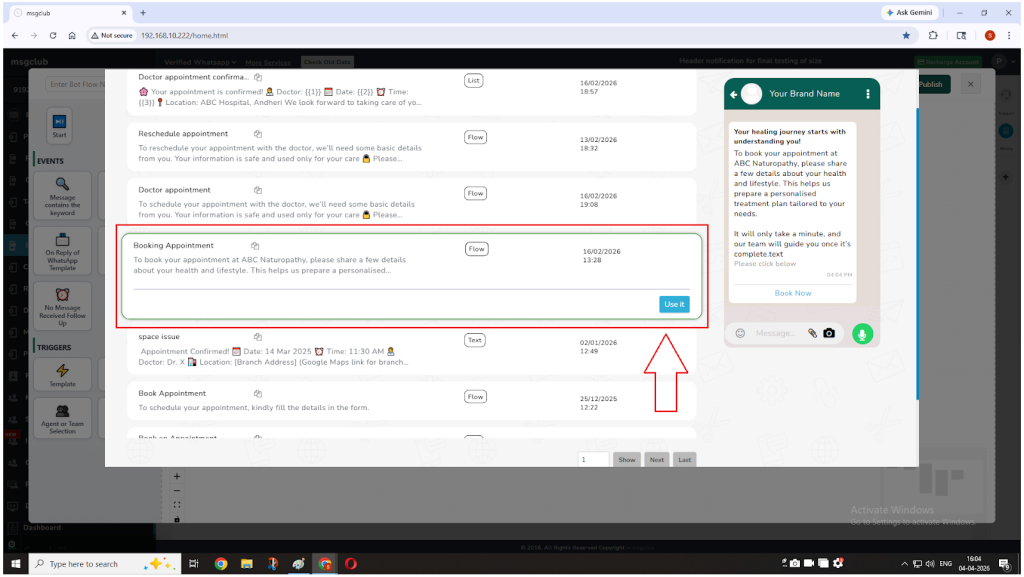
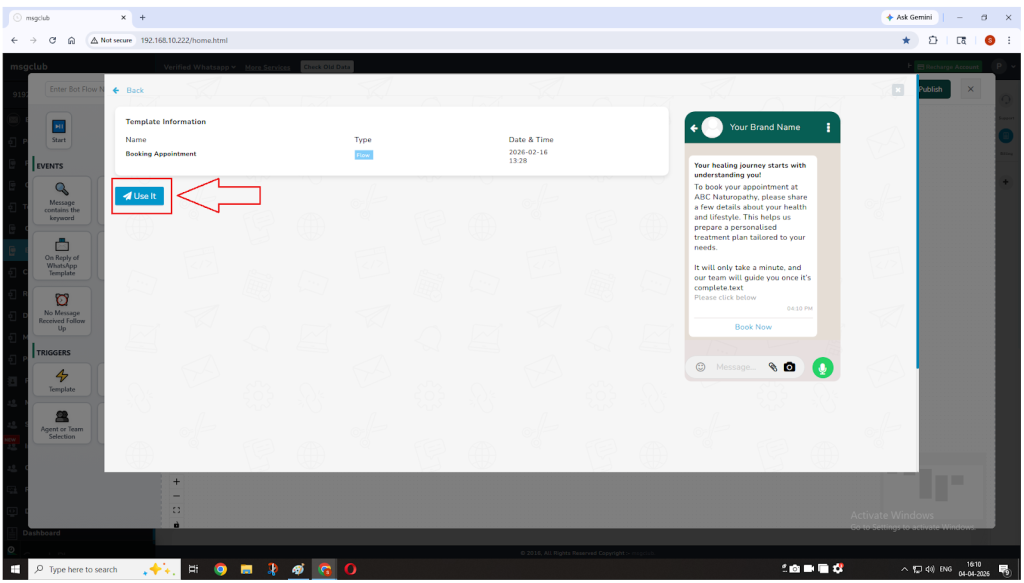
The template will be added to the bot flow on the canvas.
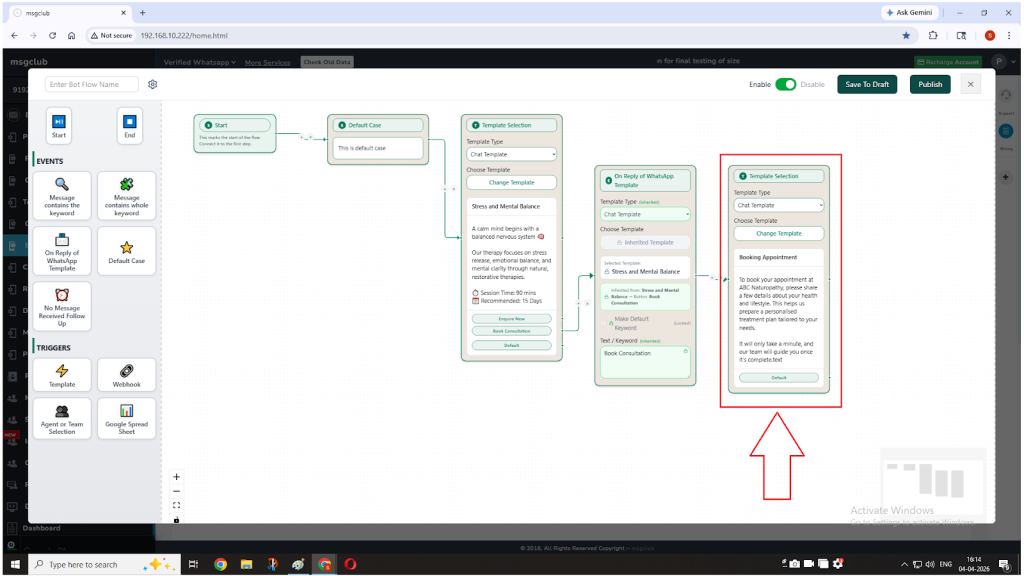
Step 18: After adding the template, insert another node in the flow. In the pop-up:
- Select Trigger
- Choose Google Spreadsheet as the trigger type
Step 19: A configuration pop-up will appear, allowing you to set up your Google Spreadsheet.
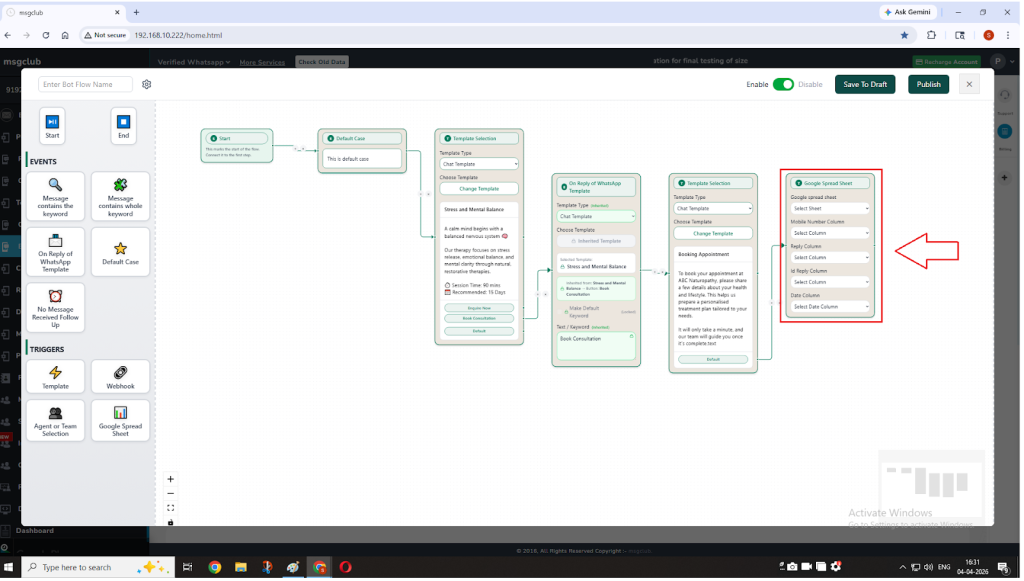
Step 20: Click on Select Spreadsheet, then choose the sheet where you want the data to be stored.
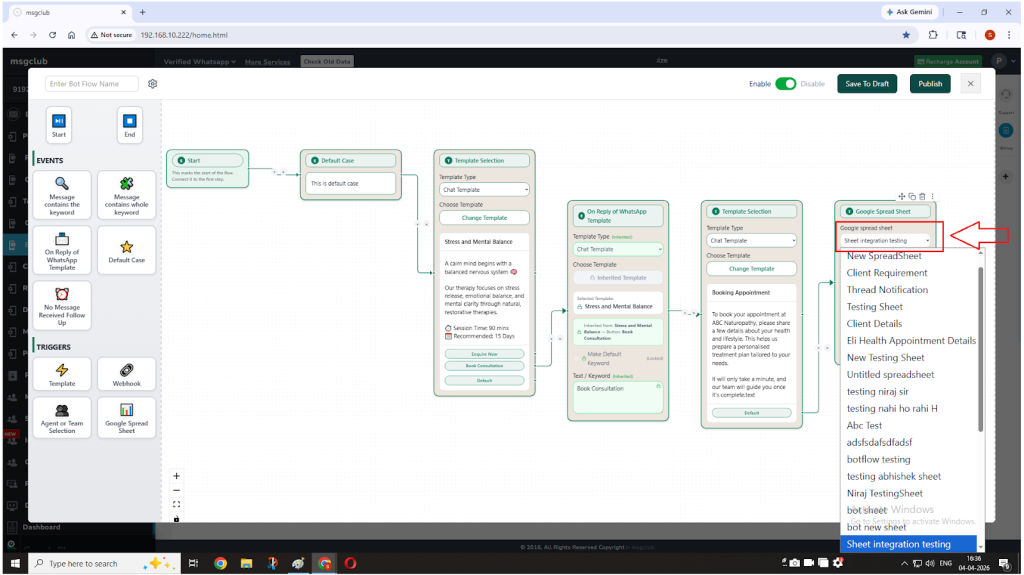
Step 21: Map your flow fields to the matching columns in your Google Sheet, ensuring each field is placed in the correct column.
Example –
Integration Column Spreadsheet Column
1. Contact number Contact number
2. Reply Name
3. Reply ID ID
3. Date Date
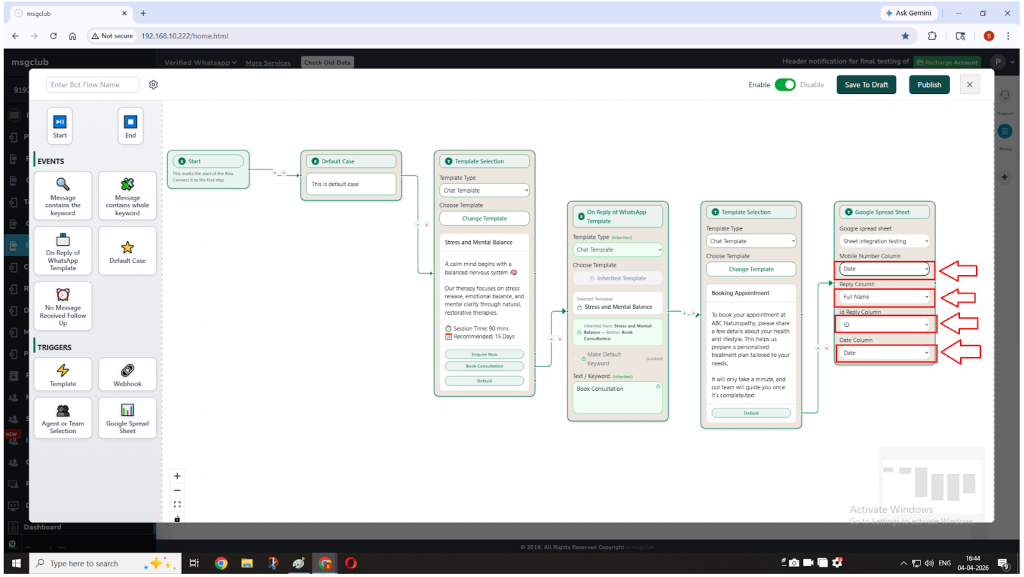
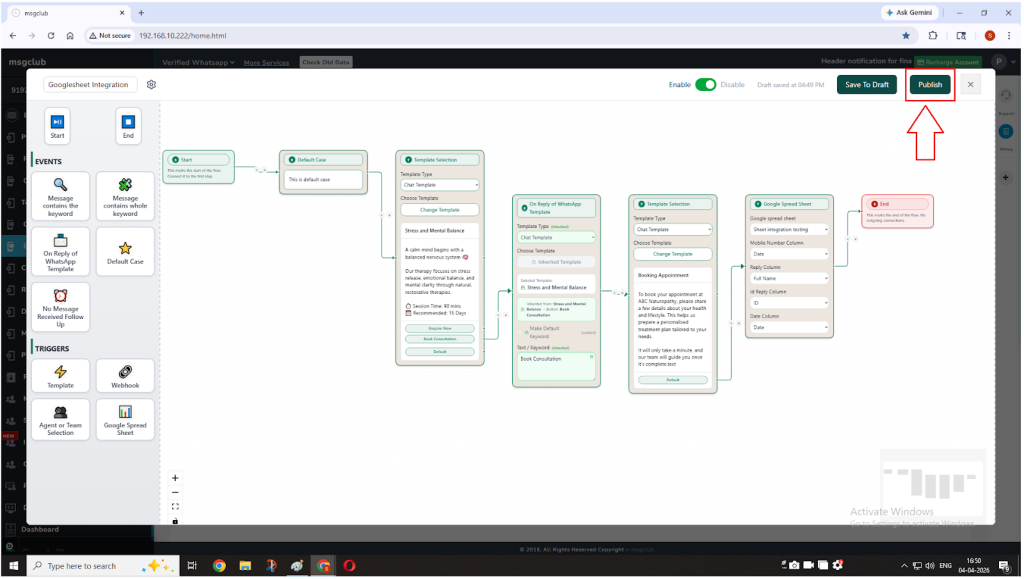
Step 22: Once everything is configured:
- Continue building your flow if needed, or
- End the flow if this is the final step by adding an End Flow node.
Click on Publish to save your Bot Flow.
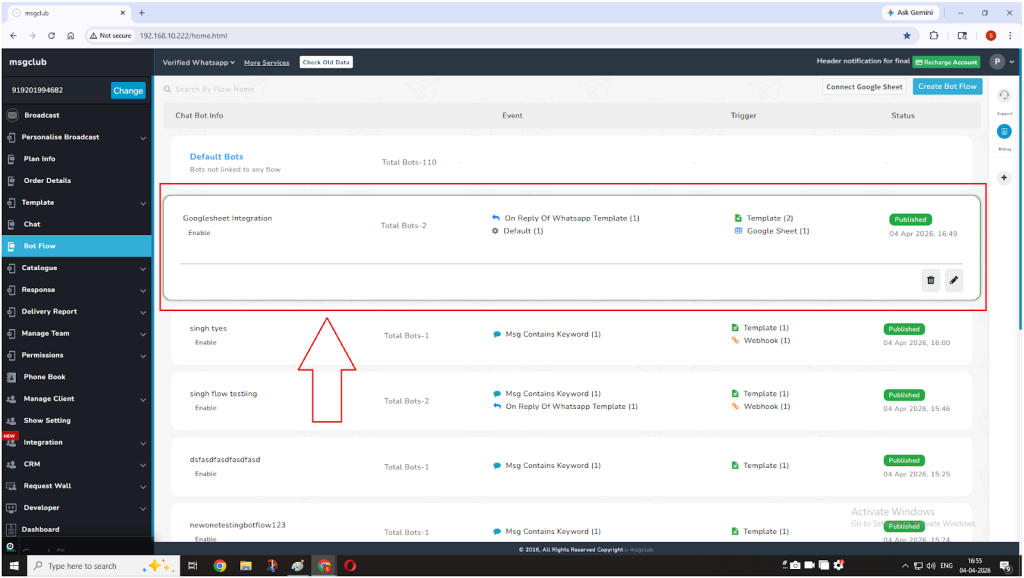
Step 23: After publishing, your bot will appear in the list of Bot Flows.
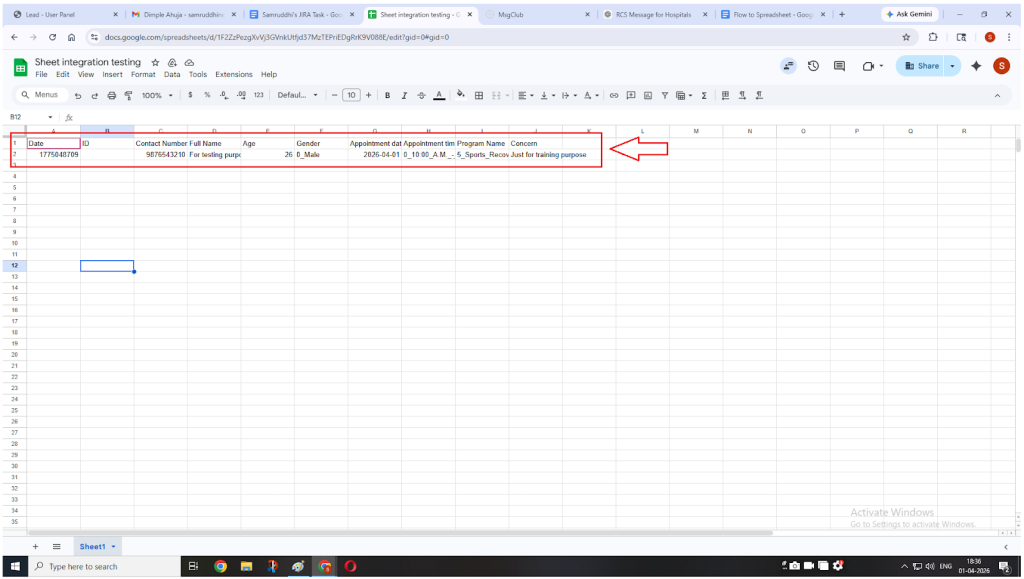
Step 24: Once your setup is complete, the process becomes fully automated. Every time a user fills out your WhatsApp Flow, their responses will be automatically added as a new row in your connected Google Sheet.
FAQs
Q. Why should I connect Google Sheets with WhatsApp Flow?
Ans. Connecting Google Sheets allows you to automatically store user responses in real-time, eliminating manual data entry and making it easier to track leads, responses, and customer interactions.
Q. Do I need to create a Google Sheet before integration?
Ans. Yes, you must create a Google Spreadsheet in advance and use its URL during the configuration process.
Q. Why am I seeing “Google hasn’t verified this app”?
Ans. This is a standard Google security warning for custom integrations. You can proceed safely by clicking Advanced → Go to msgclub.net (unsafe).
Q. Is it safe to grant Google permissions?
Ans. Yes, permissions are required to allow MSGClub to write data into your Google Sheet. Ensure you are using the official MSGClub platform before granting access.
Q. Can I connect multiple Google Sheets to different flows?
Ans. Yes, you can configure different Google Sheets for different bot flows based on your business requirements.
Q. What type of data gets stored in the Google Sheet?
Ans. All user inputs captured in the flow—such as name, mobile number, responses, and selections—can be stored in the sheet.
Q. What should I do if the data is not reflecting in the sheet?
Ans. You can check the following:
- Verify the Google Sheet URL
- Ensure proper permissions are granted
- Confirm the flow is correctly configured
- Reconnect the integration if required
Q. Can I edit the Google Sheet after integration?
Ans. Yes, you can edit the sheet (e.g., add columns), but ensure that changes do not disrupt the configured mapping.
Q. Will data be stored in real-time?
Ans. Yes, data is captured and stored instantly as users interact with the WhatsApp Flow.
Q. What happens if I revoke Google access?
Ans. If access is revoked, the integration will stop working, and data will no longer be captured in the sheet.