
What is Flow?
WhatsApp Flows is a feature that can helps businesses create interactive, chat experiences within WhatsApp. It uses a combination of normal messaging and interactive elements like buttons, lists, and forms to guide customers through a series of steps which can help business in gathering client information, assist customers in selecting products, create a registration process and book appointments—all within a single WhatsApp message.
The Flow Template can be created for both Marketing and Utility category and in this blog we will learn how to create flow template in Utility Category
Learn More
Video
Step by Step Guide
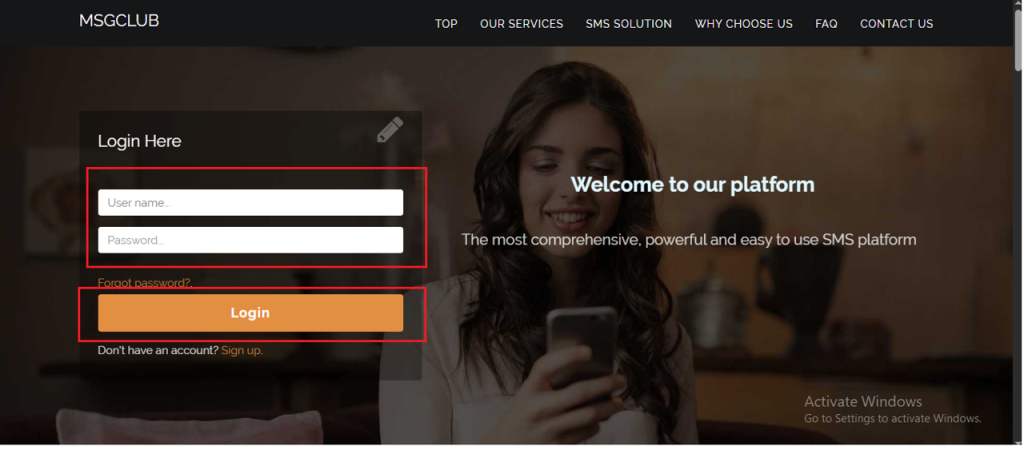
Step 1: Sign in to MsgClub using your Username and Password.
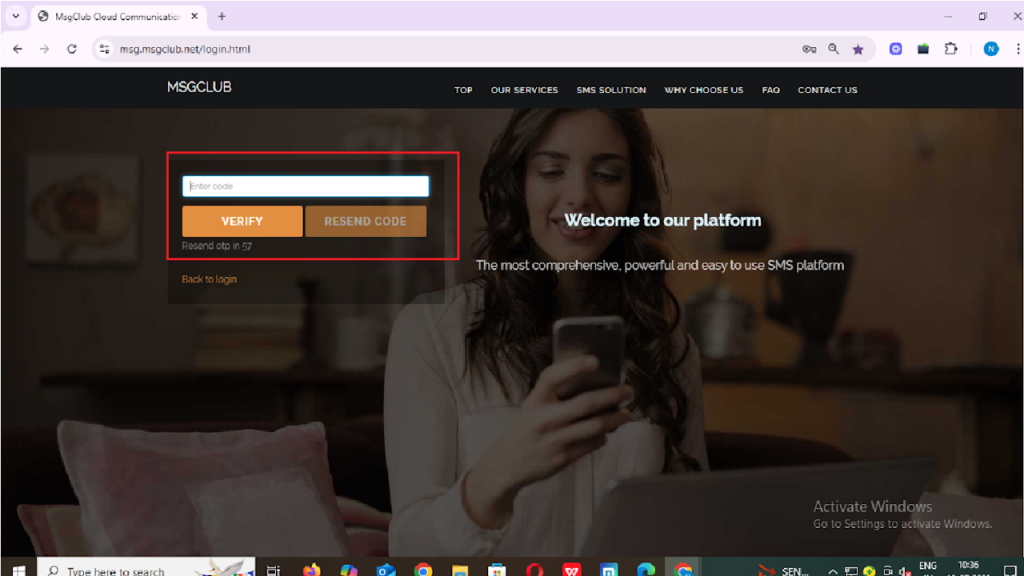
Step 2: You’ll receive an OTP on your registered mobile number. Enter the OTP and click Verify.
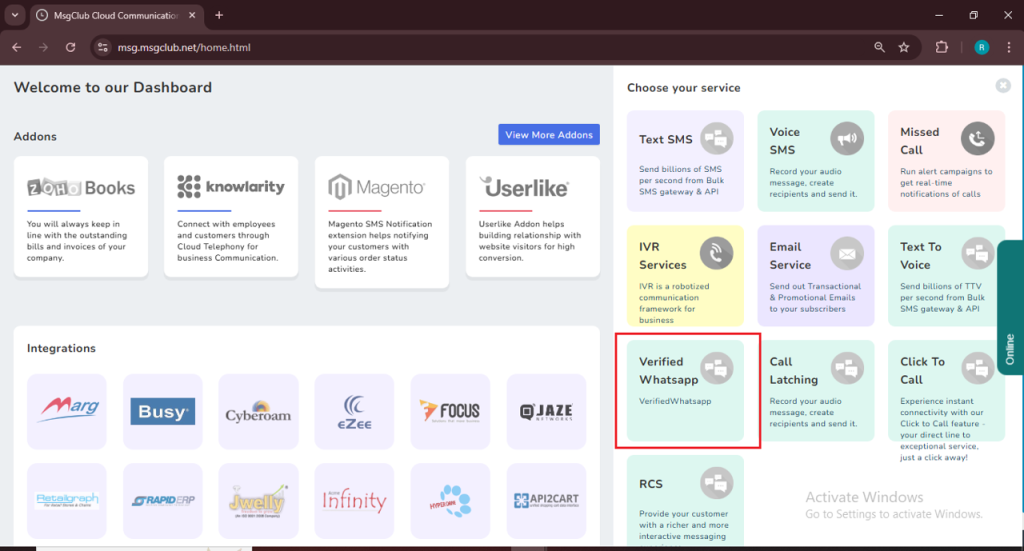
Step 3: From the Dashboard, select Verified WhatsApp Service.
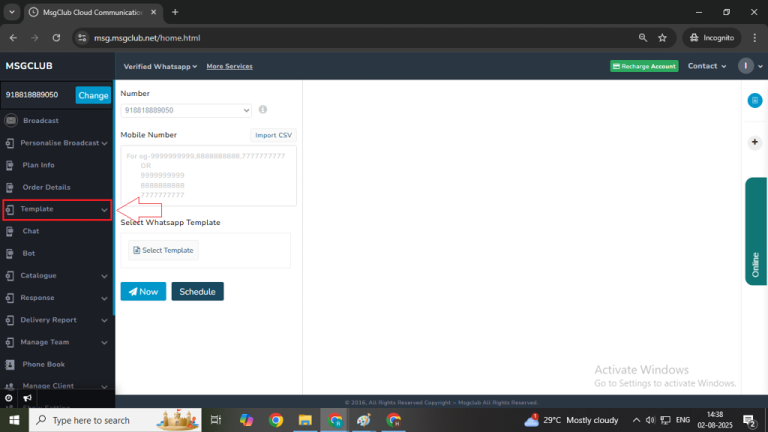
Step 4: In the left-hand panel, click on Template and in it select “Broadcast Template”
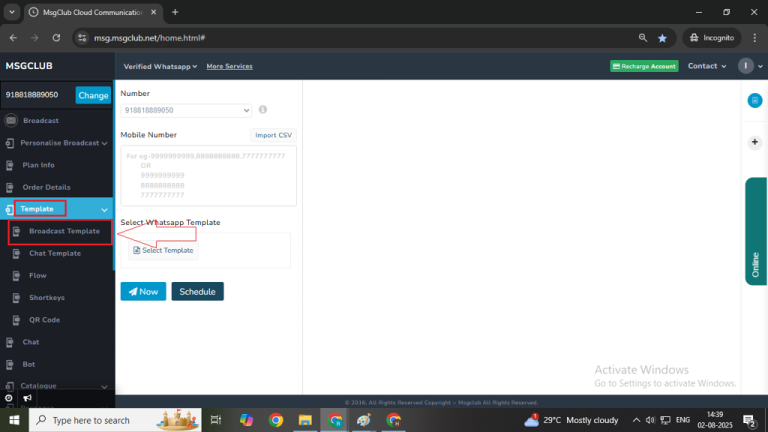
Step 5: Click on the Create Template button on the right side.

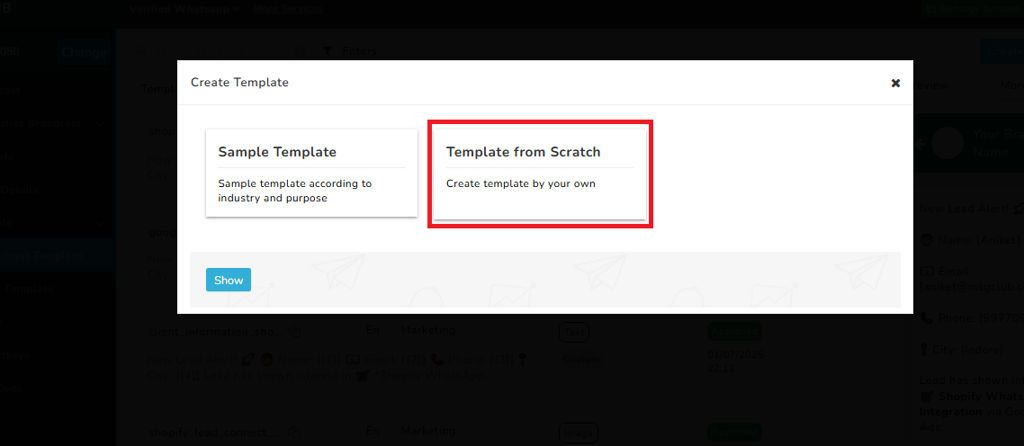
Step 6: Choose Template from Scratch, then click the Show button. This will open a form where you can create your broadcast template.
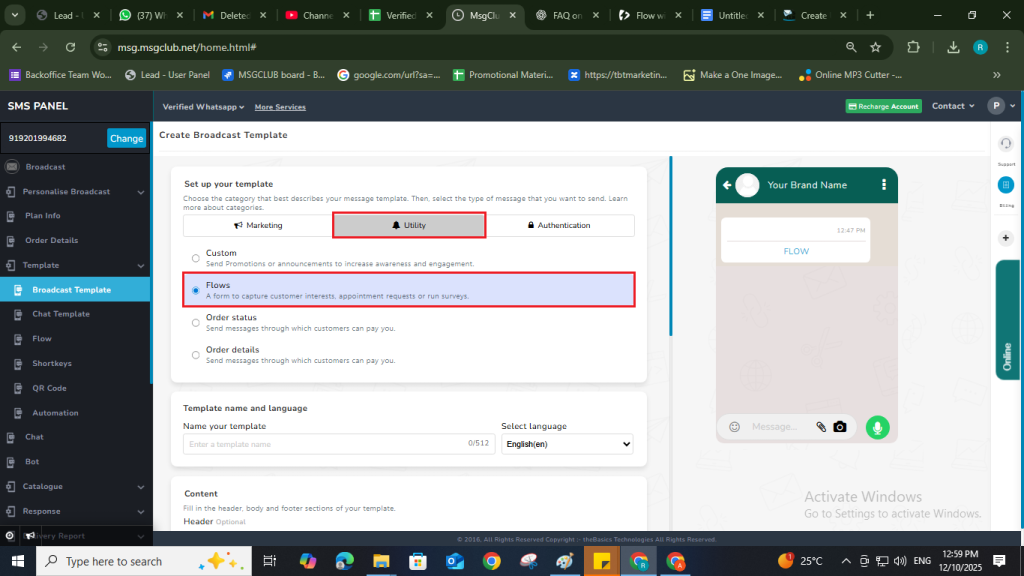
Select Template Category
- Category: Select the message category which decides your message type like — Marketing, Utility, or Authentication.
- Marketing – Marketing is used for promotional and semi-promotional messages and it comes with many different types of features.
- Utility- Utility is for transaction messages like bills, invoice etc.
- Authentication – Authentication is for verification codes and OTPs messages where the content is fixed and cannot be changed.
Note: To create a transaction or informational template, choose the Utility tab and in it choose Flow.
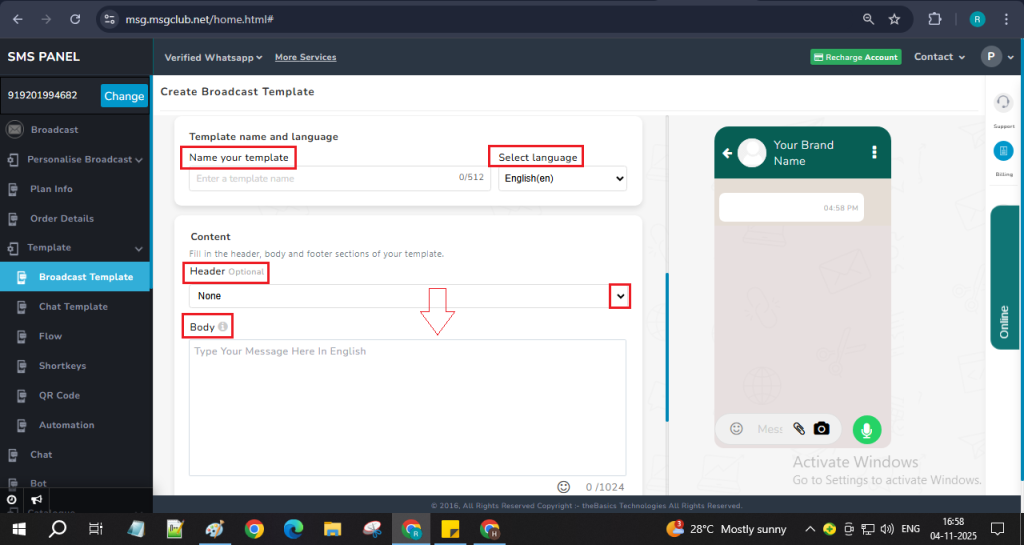
Fill in the following fields
- Template Name: Enter a unique name for your template.
- Language: Choose the template language.
- Header (Optional): Select the type of header — Text, Image, Video, or Document.
- Body: Write the main message for the broadcast. You can also insert variables if needed.
Note – Make sure this template does not contain any promotional content otherwise it will not be approved in utility also might get rejected.
- Footer (Optional): Add a message footer if required.
- Button : Since this is a Flow, then the flow button will be preselected in the Action Type dropdown and select the flow that you want to send using Select Flow dropdown.
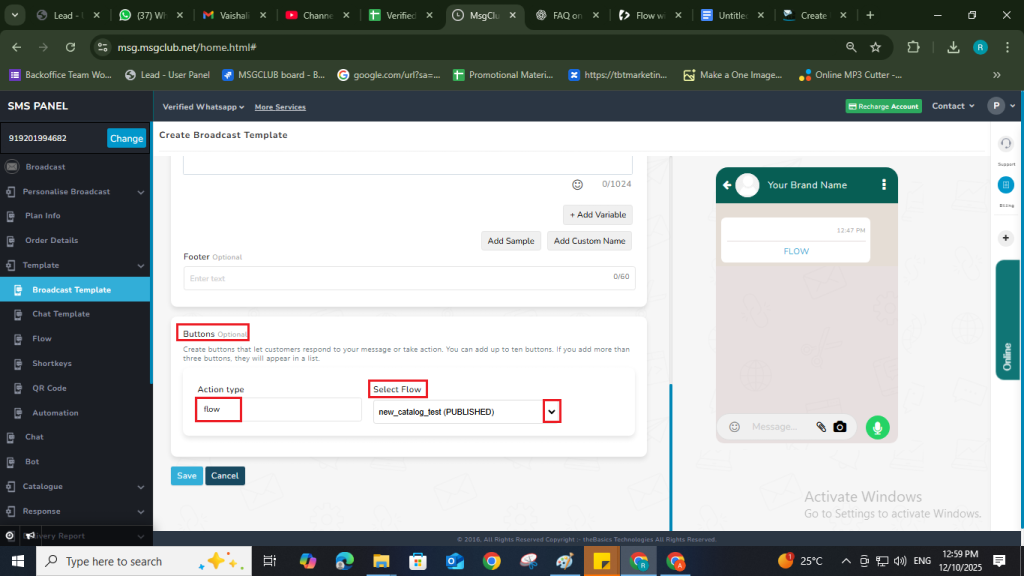
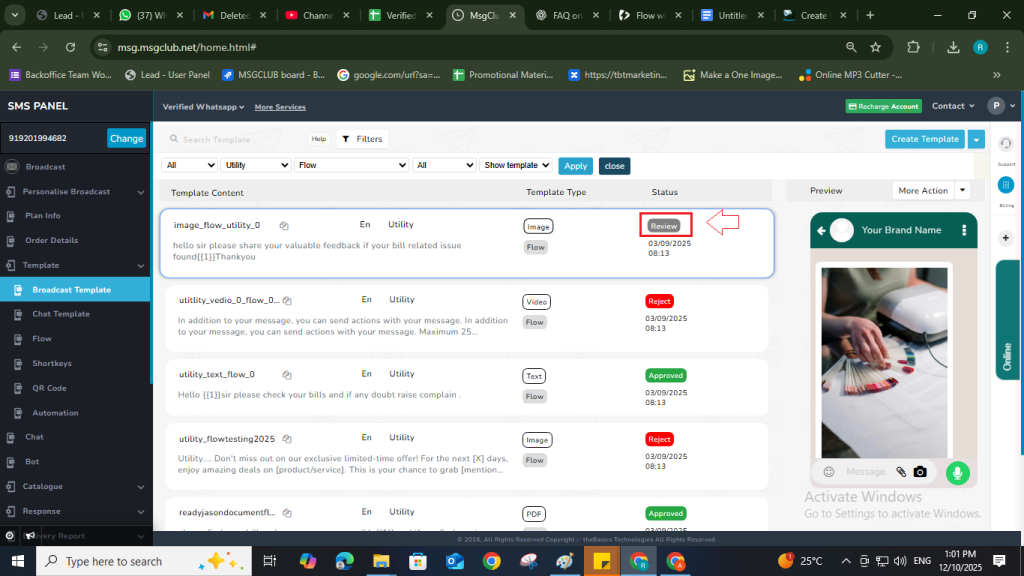
Step 7: After filling in all the required details, click the Save button. Your broadcast Flow template will be created and added to the Template List, where its status will appear as “In Review.”
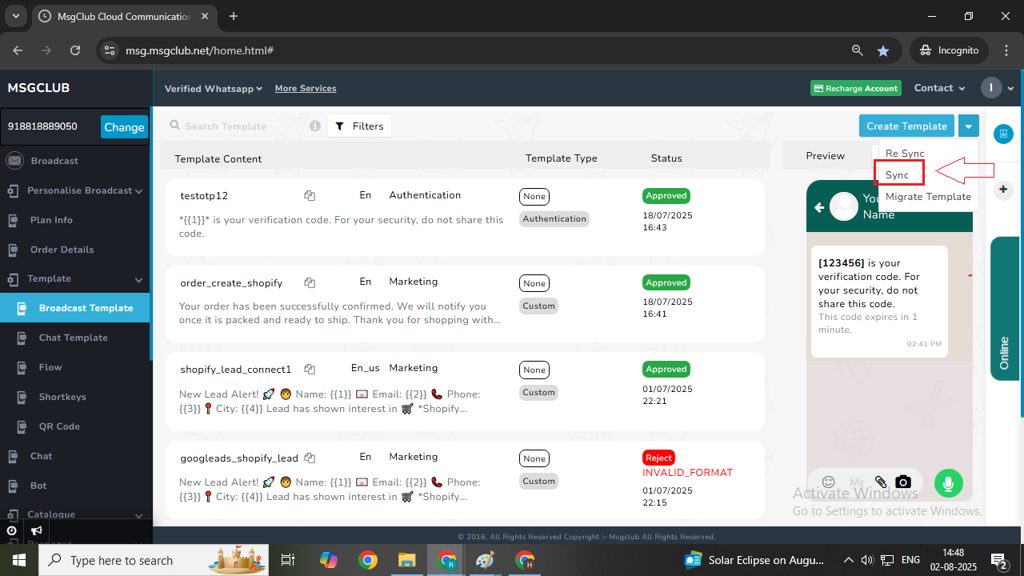
Note – After submitting your template, please wait a few seconds for it to be approved. If it takes longer than expected, go to the Create Template dropdown and select the Sync option. This will update the status of all your latest templates.
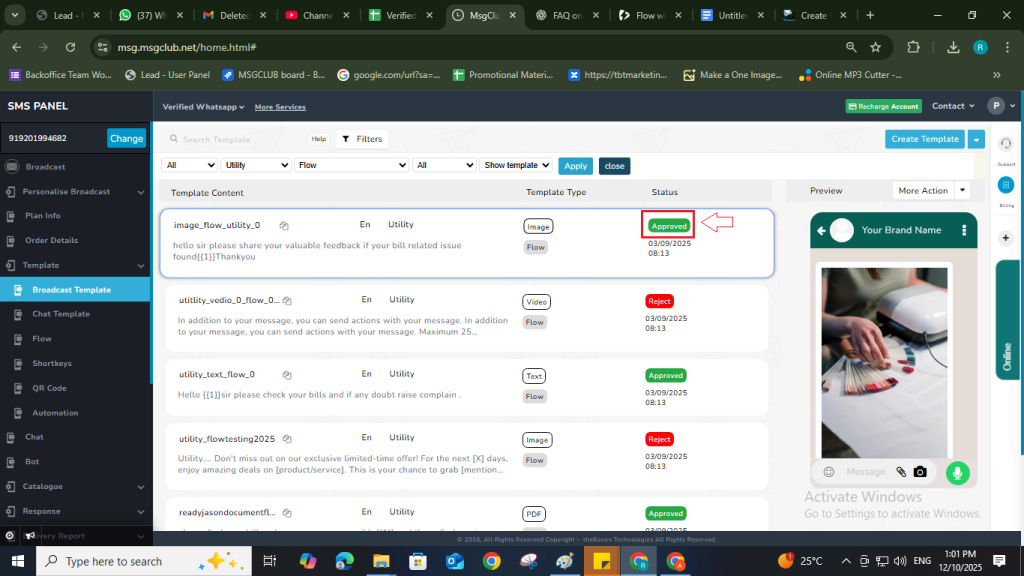
Step 8: After your template status is shown as Approved then you can start sending your WhatsApp messages
FAQs
Q. What is Flow?
Ans. A Flow is an interactive WhatsApp form or step-by-step journey that helps you collect information, guide users, or automate tasks. It allows customers to fill details like name, address, product preferences, feedback, etc., within WhatsApp itself.
Q. What is a Utility Template?
Ans. A Utility Template is a WhatsApp-approved message format used for sending important, business-critical updates to customers.
Examples: Invoices, billing updates, order confirmations, reminders, or payment alerts.
Q. Can I send my customer an information form to get their details for invoice or billing?
Ans. Yes. You can send customers an information form using a Flow in Utility category, where they can fill in their billing and invoice details directly on WhatsApp.
Q. Can I create a WhatsApp Flow in a Utility Template?
Ans. Yes, you can add a Flow button inside the Utility Template.
This means:
- Utility Template = your main message
- Flow Button = opens the interactive form