
This integration allows your Google Sheet to automatically send data to an API whenever a new row is added or an existing row is updated. It helps you automate workflows such as sending leads to a CRM, triggering WhatsApp messages, or updating external systems without any manual effort.
In simple terms, every time your sheet is updated, the data is instantly converted into JSON and sent to your API.
Automation Flow
Google Sheet Entry → Apps Script Trigger → JSON Creation → API Call → Response Received
Learn More
Process Video
Step-by-Step Guide
Step 1: Start by creating a new Google Sheet or using an existing one.
Ensure that your sheet has clearly defined column headers, as these will be used as keys in the API payload.
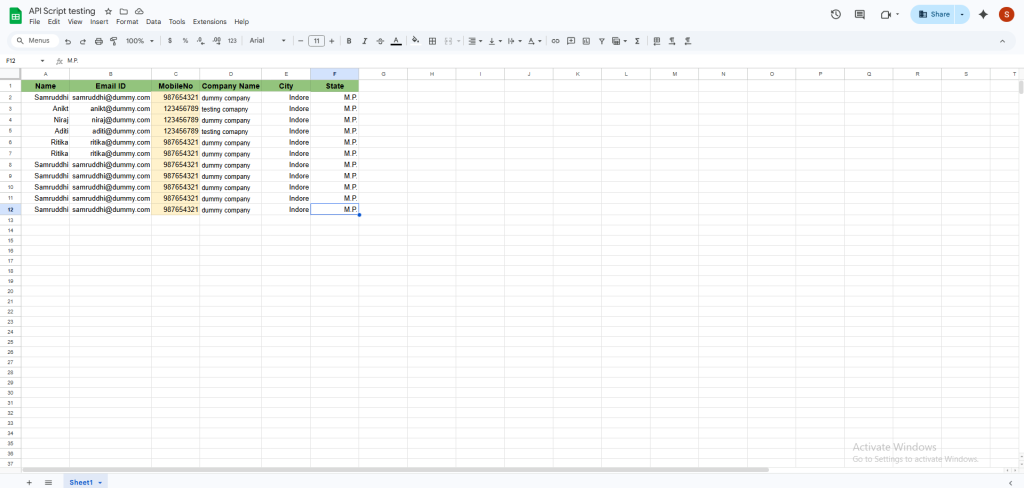
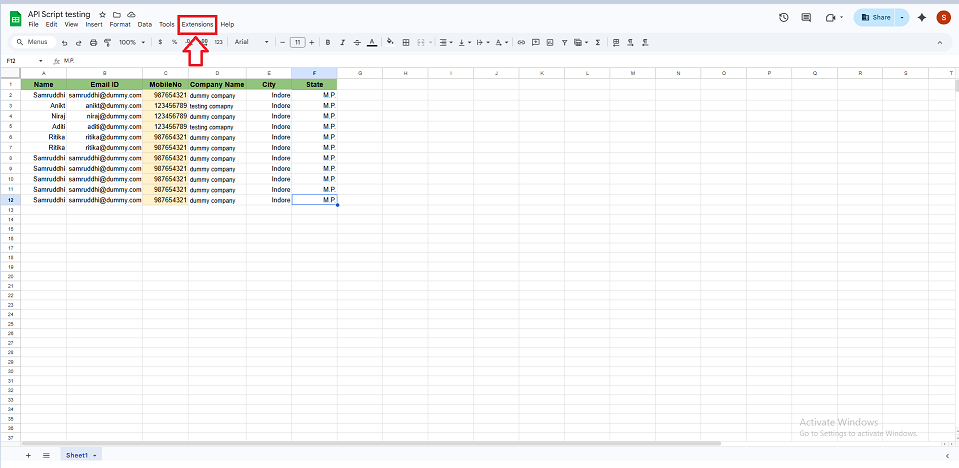
Step 2: Go to your Google Sheet and click on Extensions in the top menu and select Apps Script.
Flow – Google spreadsheet >> Extension >> App Script
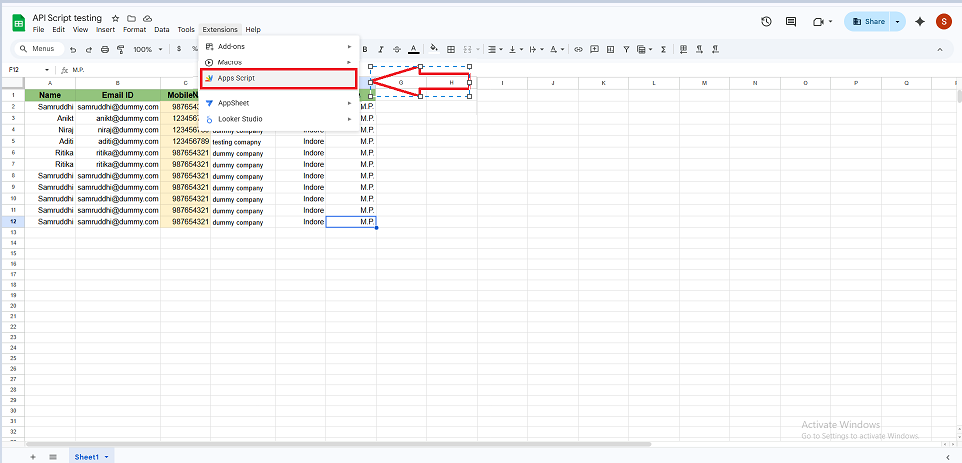
A new Apps Script editor window will open where you can add your automation logic.
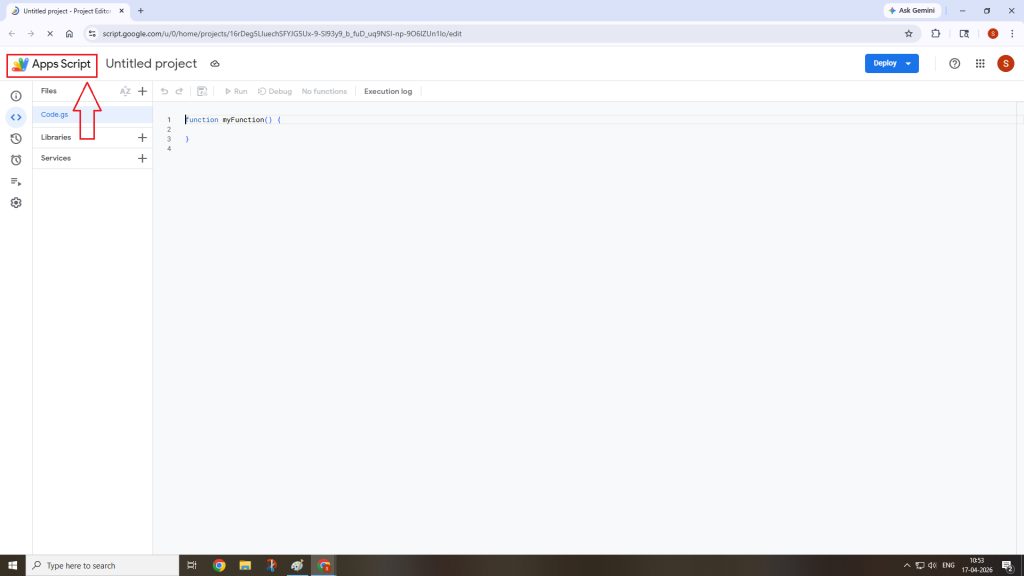
Step 3: Delete any existing code in the editor and paste the provided script.
function onEdit(e) {


  var sheet = e.source.getActiveSheet();
  var row = e.range.getRow();


  if (row == 1) return; // skip header


  var lastColumn = sheet.getLastColumn();


  var headers = sheet.getRange(1,1,1,lastColumn).getValues()[0];
  var rowData = sheet.getRange(row,1,1,lastColumn).getValues()[0];


  var json = {};


  for (var i = 0; i < headers.length; i++) {
    json[headers[i]] = rowData[i];
  }


  var options = {
    method: "post",
    contentType: "application/json",
    payload: JSON.stringify(json)
  };


  var url = "http://oneapi.msgclub.net/OneApi/rest/services/oneapi?AUTH_KEY=f3eda4a3c71b8f9295449746dcd3e95&apiid=”Your API ID”";


  UrlFetchApp.fetch(url, options);


}
This script will:
- Capture the edited row
- Convert the data into JSON format
- Send it to your API endpoint
Step 4: Locate the following line in the script:
var url = “YOUR_API_ENDPOINT”
Replace it with your actual API URL, including your AUTH_KEY and API ID.
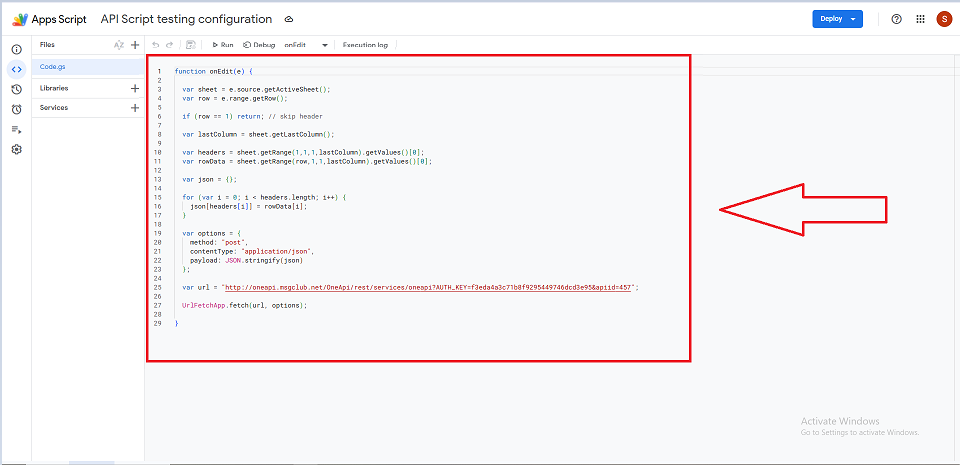
This is the endpoint where your sheet data will be sent as the script captures the edited row data, converts it into JSON format
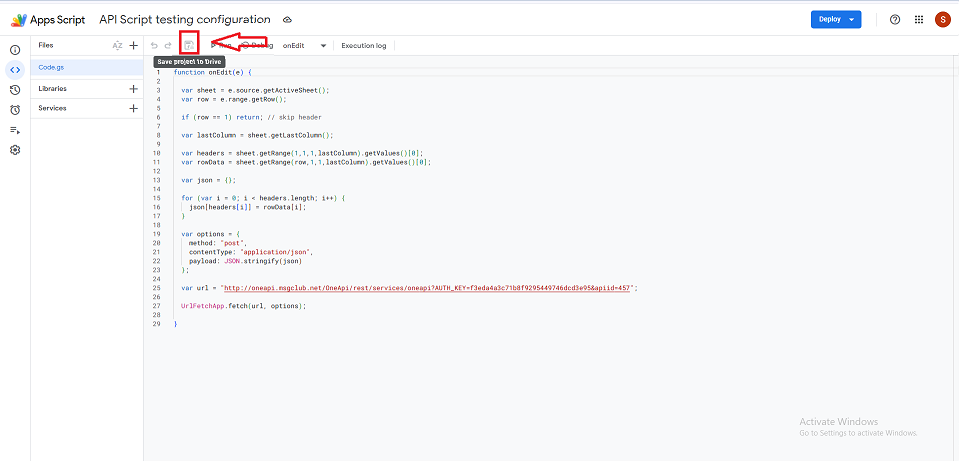
Step 5: Click on Save (floppy icon) in the Apps Script editor and add the name of the project.
This ensures your script is stored and ready to run.
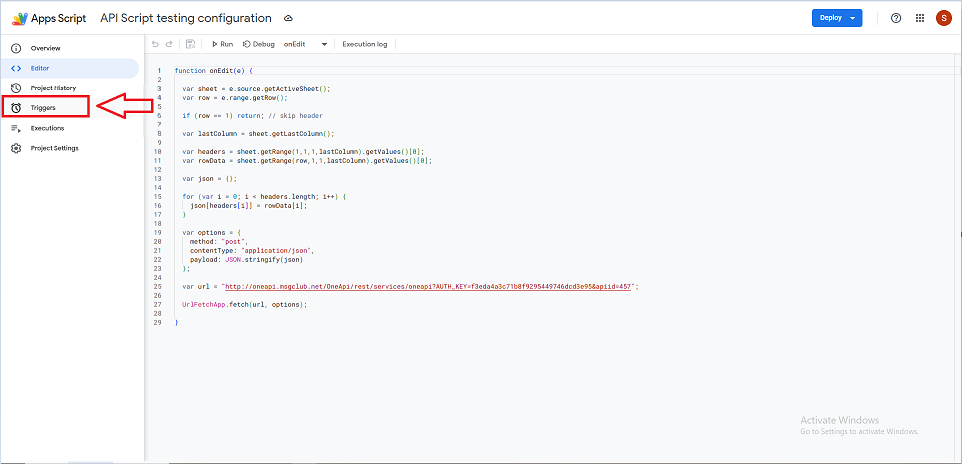
Step 6: To automate the process, you need to set up a trigger. Click on the Triggers (clock icon) in the left panel.
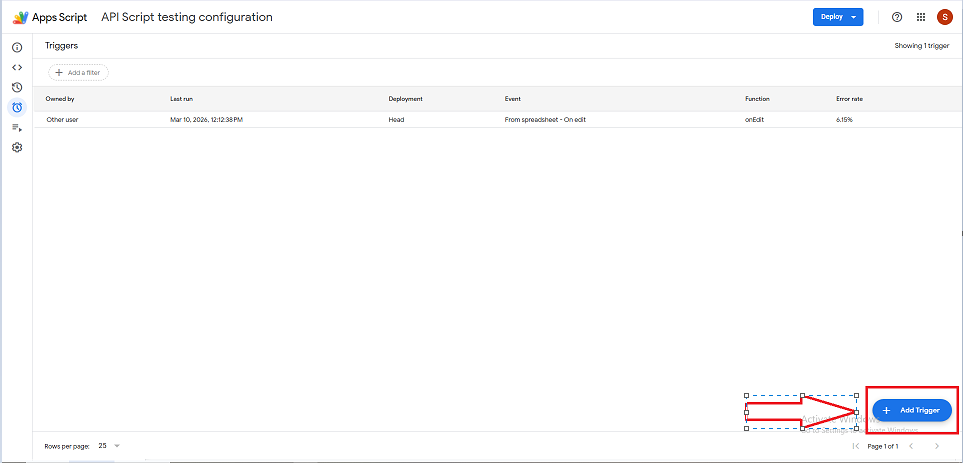
Flow – Go to trigger >> Add trigger button >> SaveFlow – Go to trigger >> Add trigger button >> Save
Click on Add Trigger
Configure the settings as follows:
| Setting | Value |
| Function to run | onEdit |
| Deployment | Head |
| Event source | From Spreadsheet |
| Event type | On edit |
| Failure notification | Notify daily |
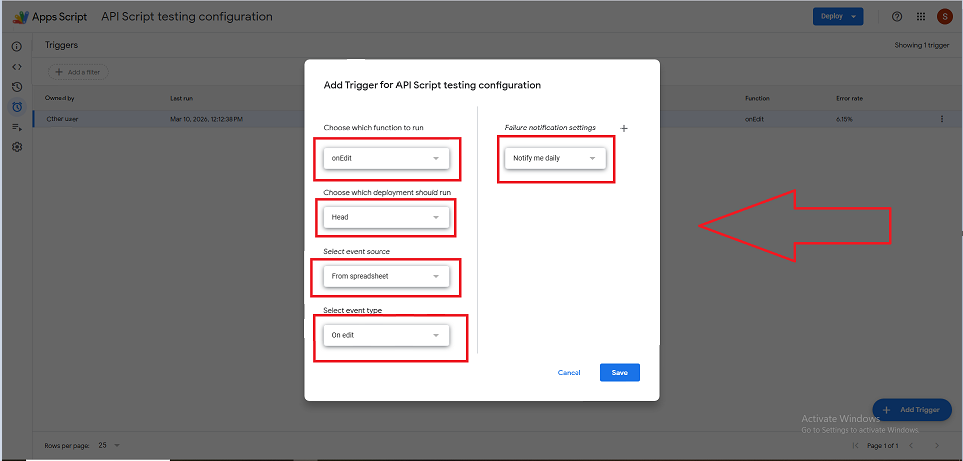
Click on Save button.
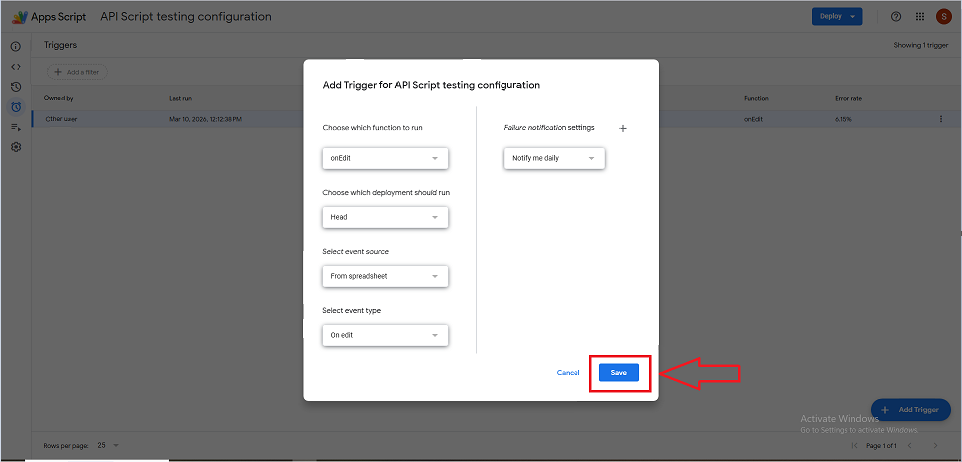
You will be prompted to grant permissions. Please allow access so the script can run properly.
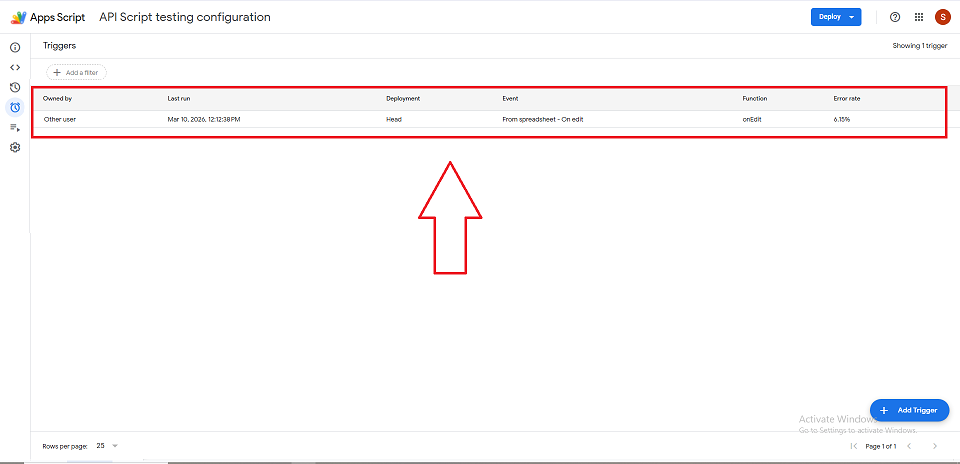
Once everything is setup your Trigger will appear in the list.
Step 7: Go back to your Google Sheet and add a new row or edit an existing one.
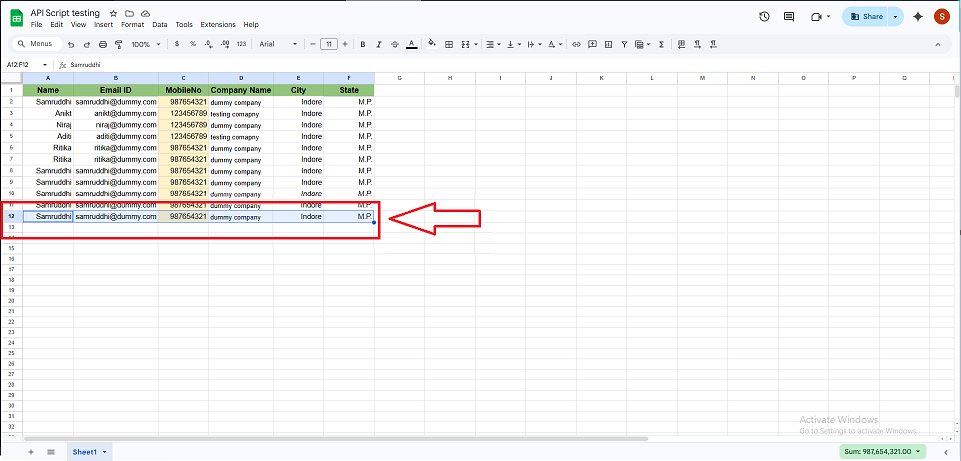
The script will automatically trigger and send the data to your API.
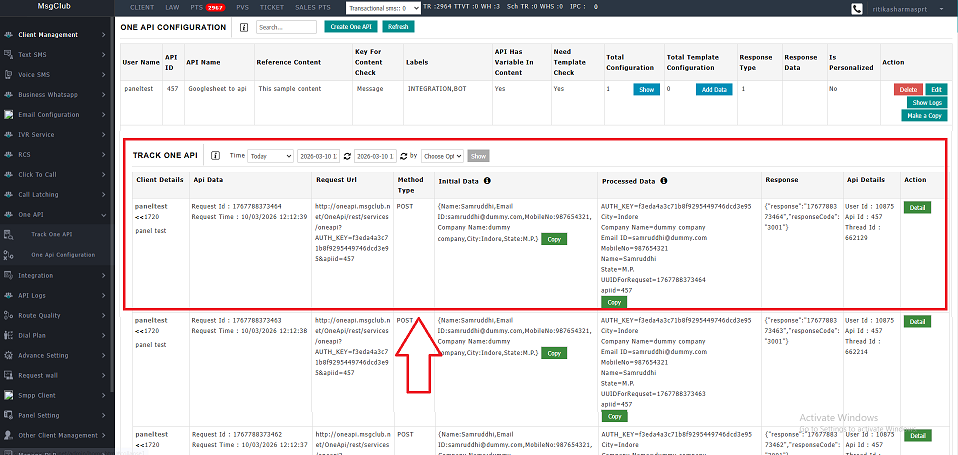
Step 8: Once the API receives the data, it may return a response confirming the processed information.
This helps you ensure that the integration is working correctly.
Reference Sheet
You can view the example spreadsheet here:
FAQs
Q. What is the main benefit of this integration?
Ans. It automates data transfer from Google Sheets to your API in real-time, reducing manual work.
Q. Does the script run automatically?
Ans. Yes, once the trigger is set, it runs automatically whenever a row is edited.
Q. Can I customise the data sent to the API?
Ans. Yes, you can modify the script to include or exclude specific fields.
Q. What happens if I edit the header row?
Ans. The script is designed to skip the header row to avoid errors.
Q. How do I know if the API call was successful?
Ans. You can check the API response or monitor logs inside Apps Script.
Q. Can I connect this with any API?
Ans. Yes, as long as the API accepts JSON data via a POST request.