
Collecting business data from platforms like Justdial manually can be time-consuming and inefficient. The Justdial Extractor tool simplifies this process by allowing you to fetch business data in bulk using keywords or website URLs.
With this tool, you can quickly gather relevant business information and convert it into a CRM-ready format. This helps streamline lead generation, improve data accuracy, and speed up your workflow from data collection to CRM upload.
Learn More
Step-by-Step Guide
Step 1 – Open JD Extractor Tool Extension in Chrome.
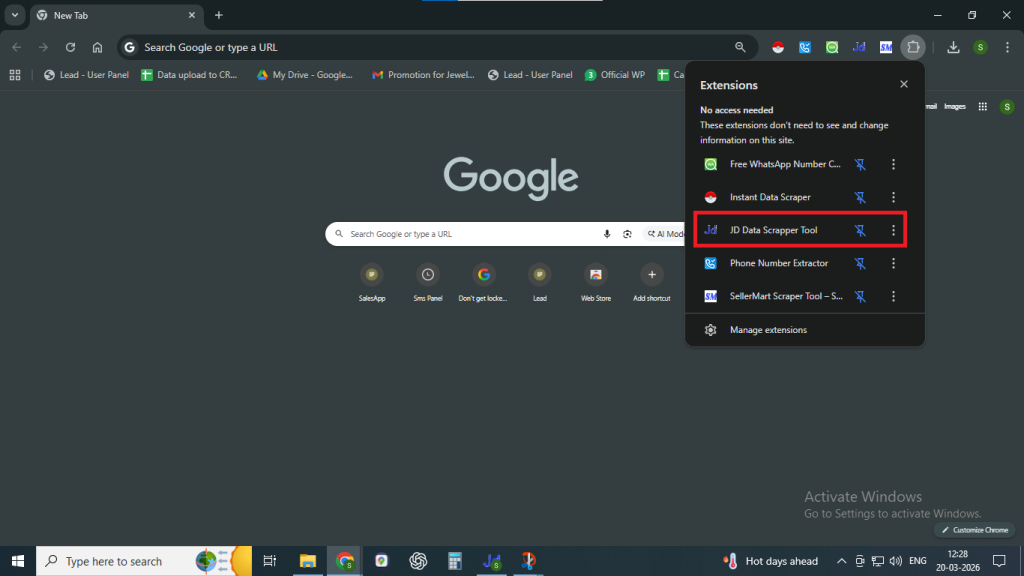
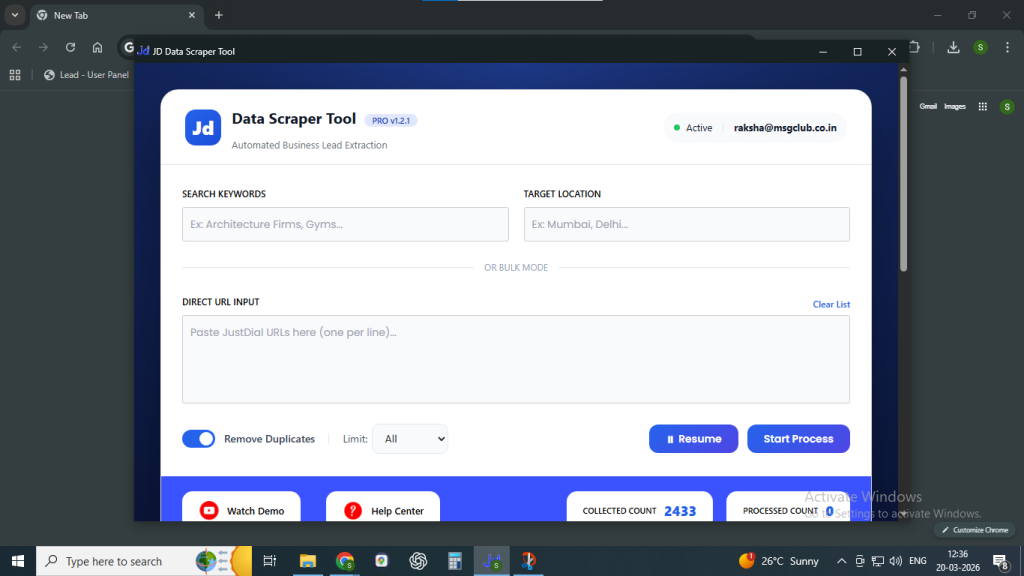
Step 2 – Enter Relevant Keywords In The Search Box Along With Desired Location To Fetch Data.
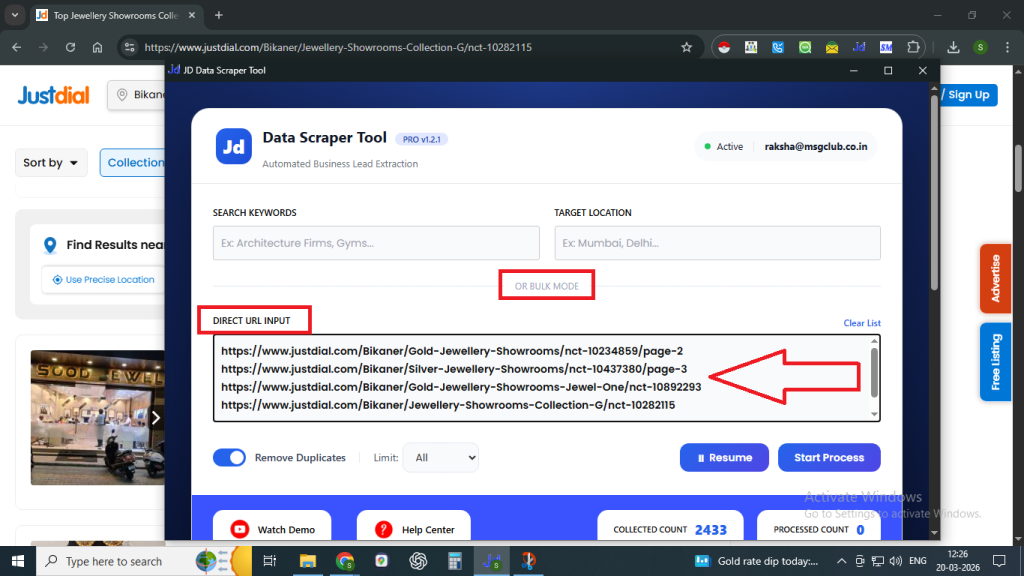
Step 3 – Alternatively, enter the Justdial website URL to extract data in bulk.
Step 4 – Now click on the Start Process button to begin data extraction.
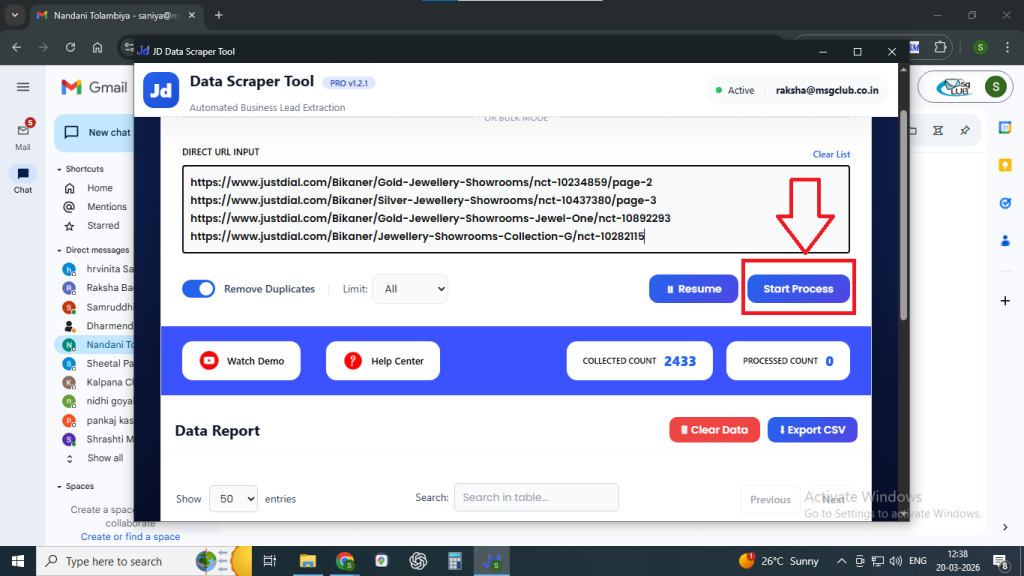
Step 5 – A scraping dialog box will open, and data will start appearing in the table below.
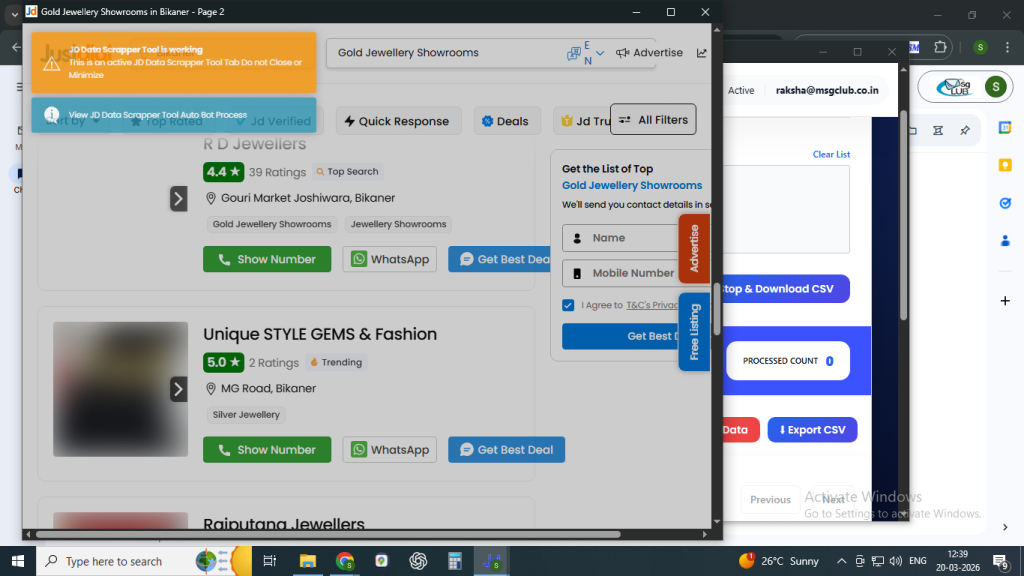
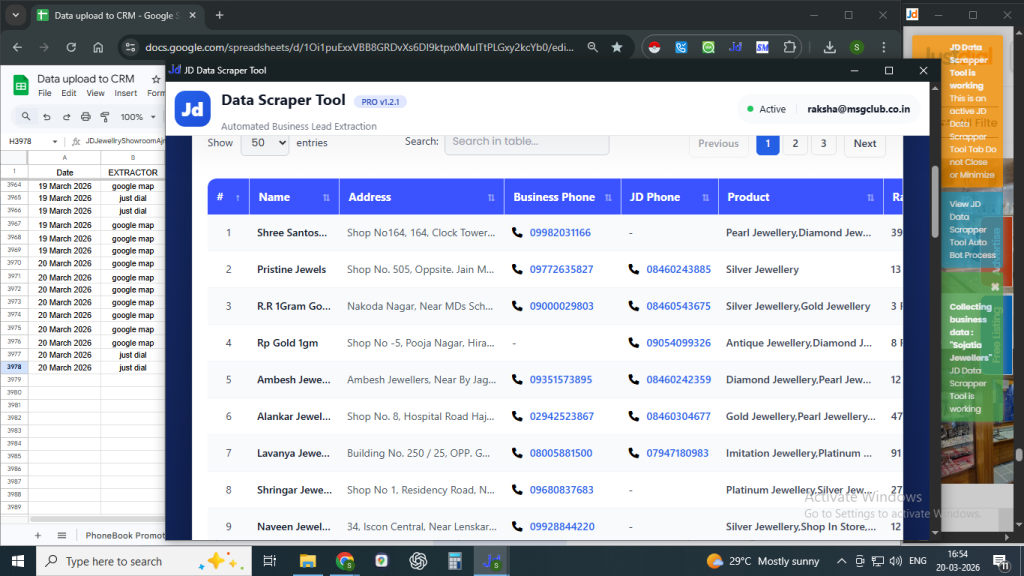
Step 6 – After completion, a CSV file of the collected data will be downloaded automatically. You can also stop the process anytime and download the CSV file.
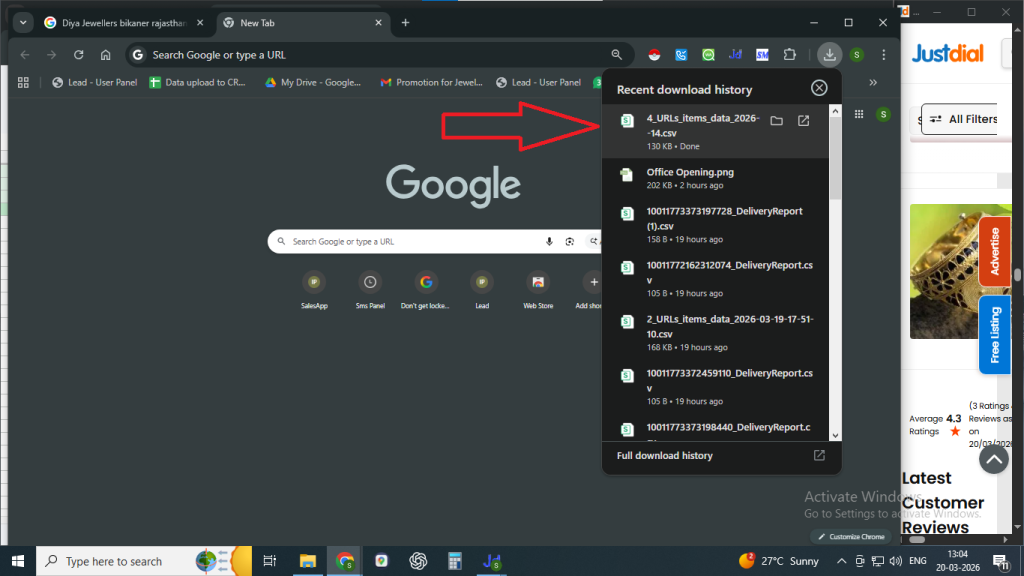
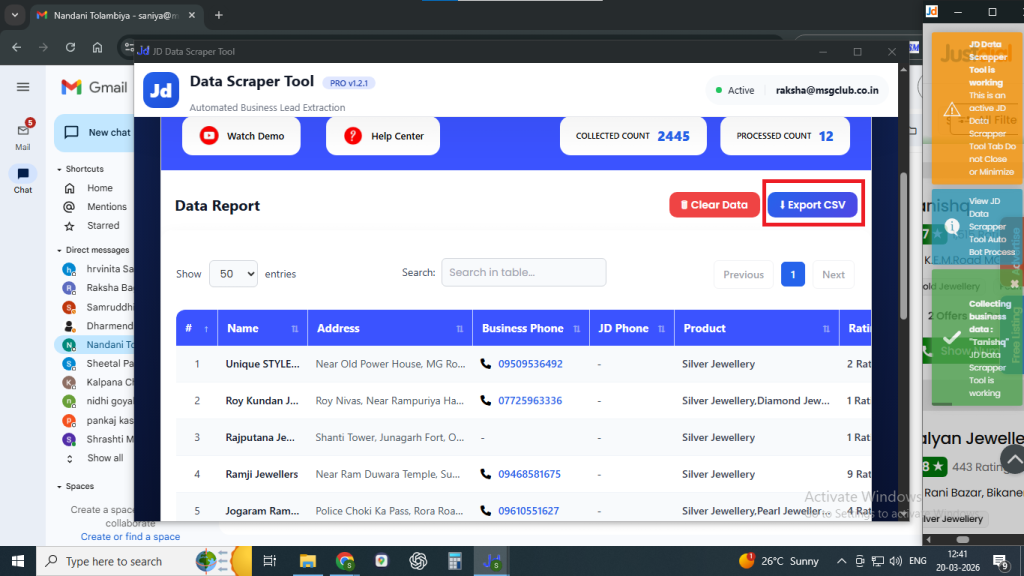
Step 7 – Now clean the raw data and convert it into CRM format.
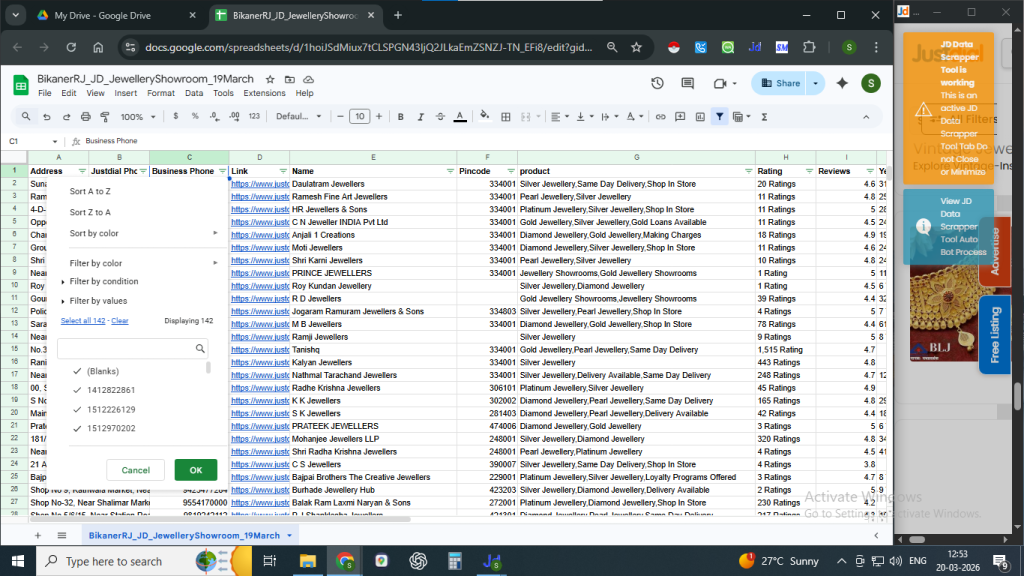
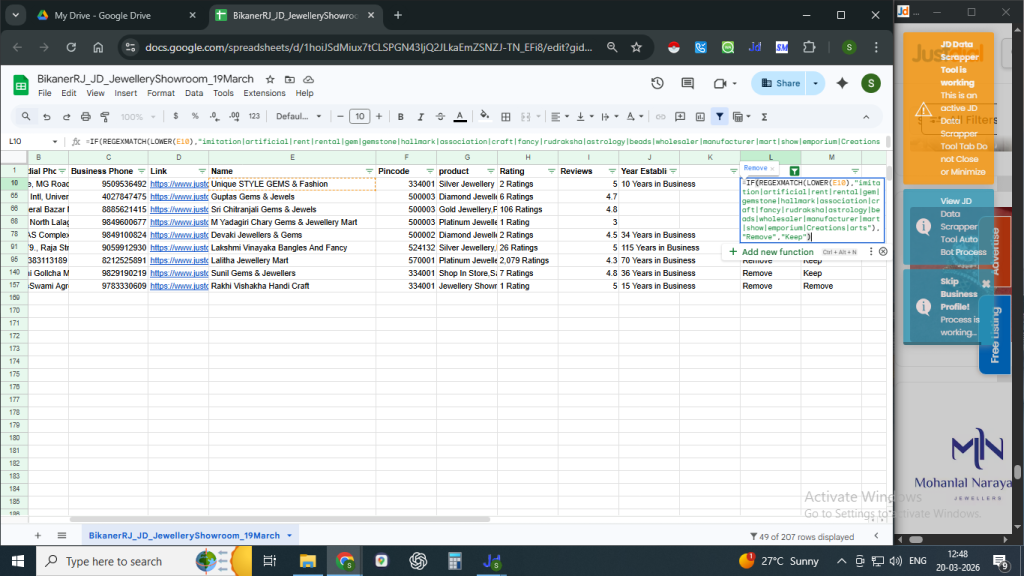
Now follow the process of Uploading the file to CRM and download the CIDs sheet.
FAQs
Q. What is Justdial Extractor?
Ans. Justdial Extractor is a tool used to collect business data from Justdial based on keywords or specific URLs.
Q. How can I extract data using this tool?
Ans. You can either enter relevant keywords with location or paste a Justdial URL to fetch data.
Q. Can I extract data in bulk?
Ans. Yes, you can extract bulk data by using keywords or directly entering a Justdial listing URL.
Q. In which format is the extracted data downloaded?
Ans. The data is automatically downloaded in CSV format.
Q. Can I stop the extraction process midway?
Ans. Yes, you can stop the process at any time and still download the available data.
Q. Do I need to clean the data after extraction?
Ans. Yes, raw data should be cleaned and formatted before uploading it to CRM.