
Collecting business data manually can be time-consuming and inconsistent. GM Extractor simplifies this process by allowing you to extract business information directly from Google Maps based on your search criteria.
With this tool, you can quickly gather details such as business names, contact information, and addresses, then format the data for CRM upload. This helps streamline lead generation, improve data accuracy, and speed up your overall workflow.
Learn More
Step-by-Step Guide
Step 1: Open GM Extractor tool on your system.
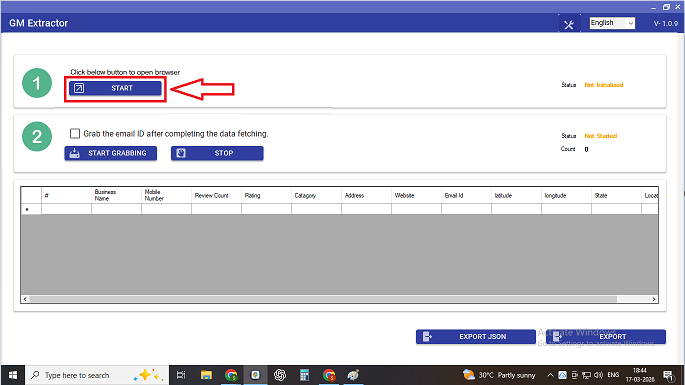
Step 2: In the Search Term section, type in the keyword or phrase you’re looking for (like “Software companies in Texas”).
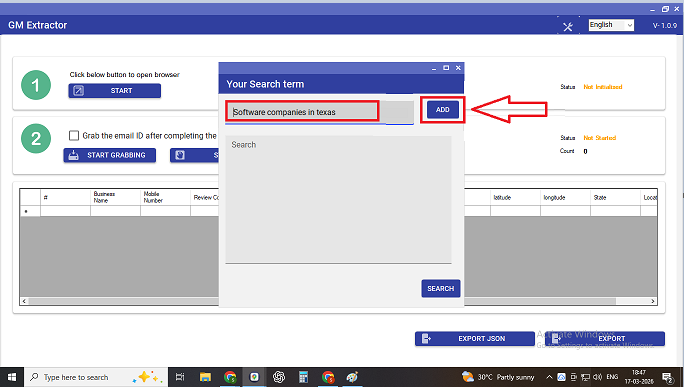
Click on ADD to add the search term to your search list and now click on SEARCH Button.
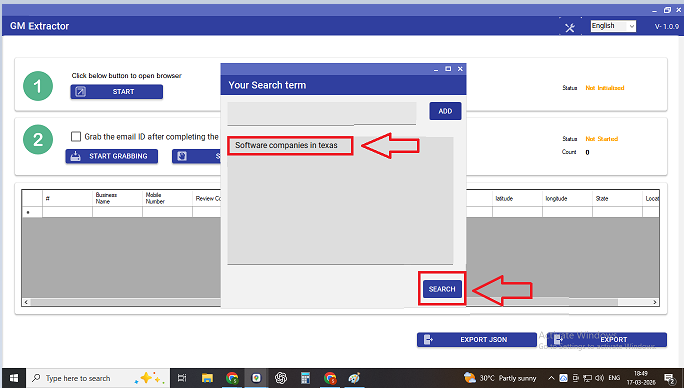
Step 4: In the Start Grabbing section, click the START GRABBING button to begin the process of fetching data from the web based on your search term.
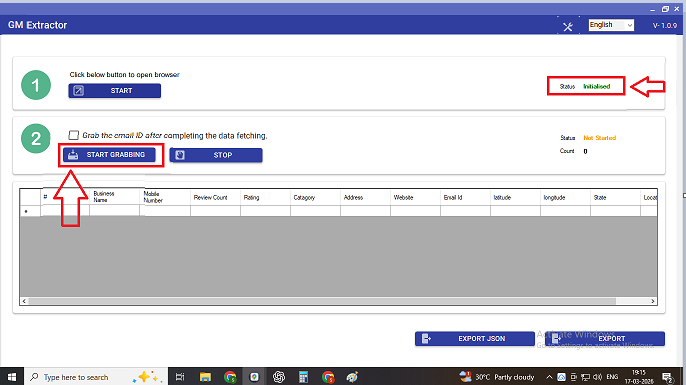
The status will show as “Running,” and will indicate the number of records being fetched.
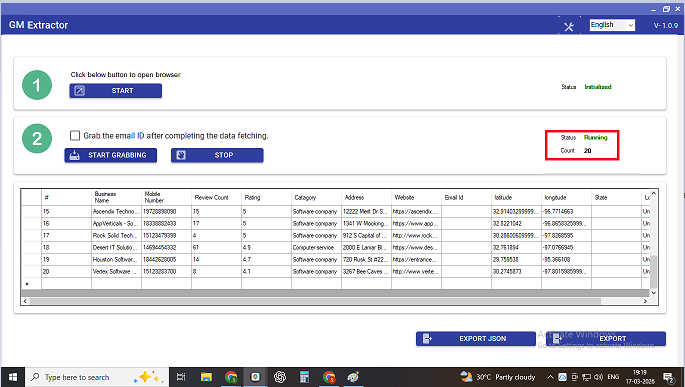
Note: Data such as business name, rating, address, and contact details will populate the table below as the tool gathers information.
Note: If you want to stop the extraction process at any time, click the STOP button under the “Grab the email ID after completing the data fetching” section. The status will then change to “Stopped.”
Step 7: Once the data extraction is completed, the Status will change to “Completed,” and the table will be fully populated with the fetched data.
Click the EXPORT button to save the extracted data in a CSV file format.
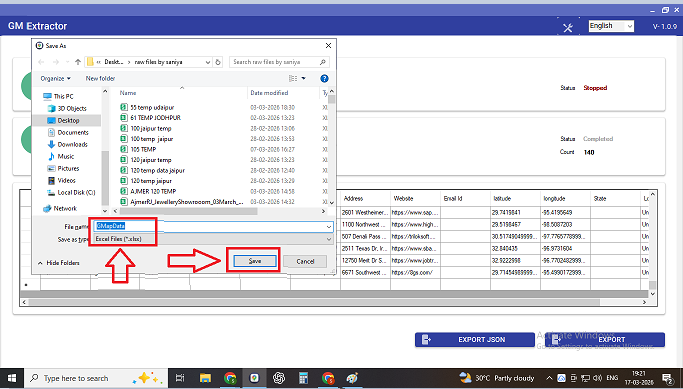
Step 8: Save the exported file.
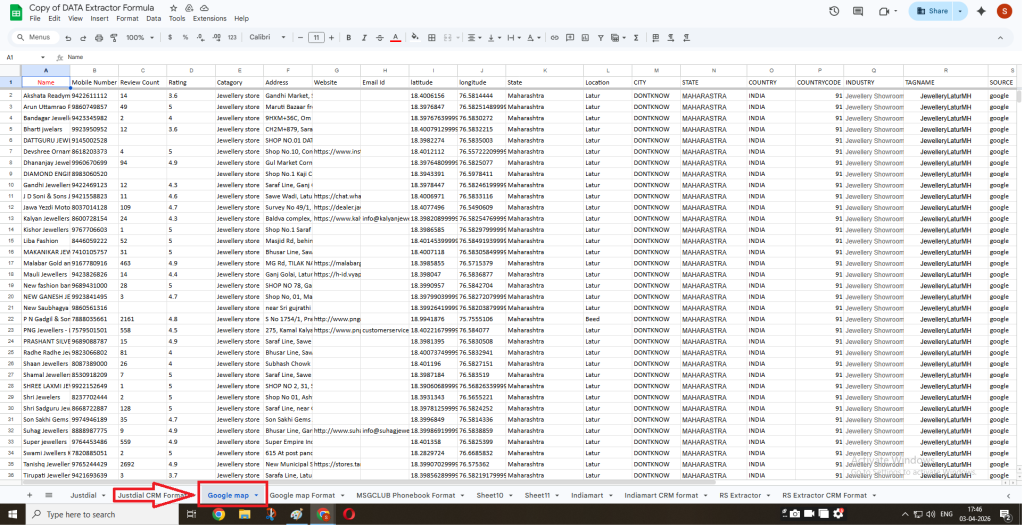
Step 9: Now open the exported file to clean the raw data and copy it. Open the Data Extractor Formula sheet and paste the data into the Google Map sheet.
The data will automatically get formatted in the CRM format in Google Map Format sheet.
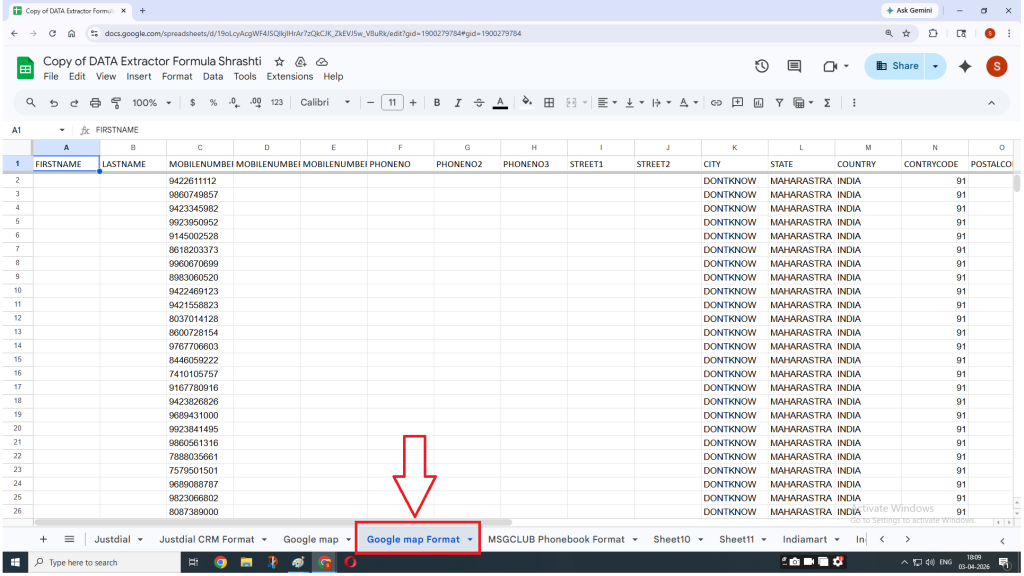
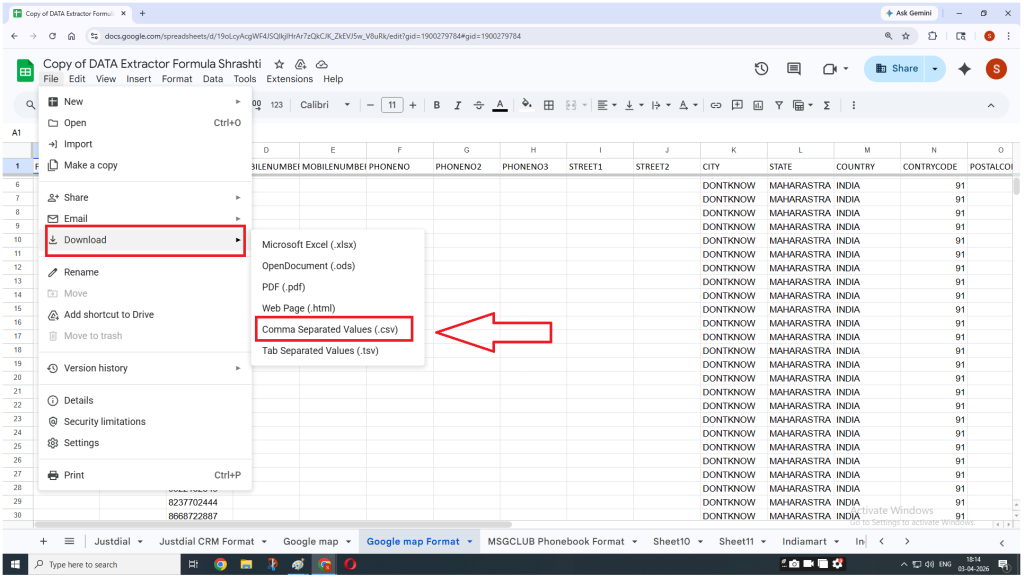
Step 10: Now download the CRM-formatted sheet in CSV format.
Now follow the process of Uploading the file to CRM and download the CIDs sheet.
FAQs
Q. What is GM Extractor?
Ans. GM Extractor is a tool used to collect business data from Google Maps based on specific search terms.
Q. What kind of data can be extracted?
Ans. You can extract details such as business name, ratings, address, phone number, and other available contact information.
Q. How do I start data extraction?
Ans. Enter a search term, click ADD, then click SEARCH, and finally click START GRABBING.
Q. Can I stop the extraction process midway?
Ans. Yes, you can click on the STOP button to halt the process at any time.
Q. In which format is the data exported?
Ans. The extracted data is exported in CSV format.
Q. Do I need to clean the data after extraction?
Ans. Yes, you should clean and format the raw data before uploading it to CRM.