
Uploading and managing contact data efficiently is essential for effective customer communication and campaign execution. Instead of adding contacts manually, MSGClub CRM allows you to upload bulk data using a CSV file—saving time and ensuring accuracy.
With the Import Contact feature, you can quickly upload large volumes of data, organise contacts using tags, and identify duplicates or errors during the process. This helps maintain a clean and structured database while giving you better control over your customer information.
By following this guide, you will be able to seamlessly upload your data, track upload status, and manage your CRM contacts more effectively.
Learn More
Step by Step Guide
Step 1: Open CRM
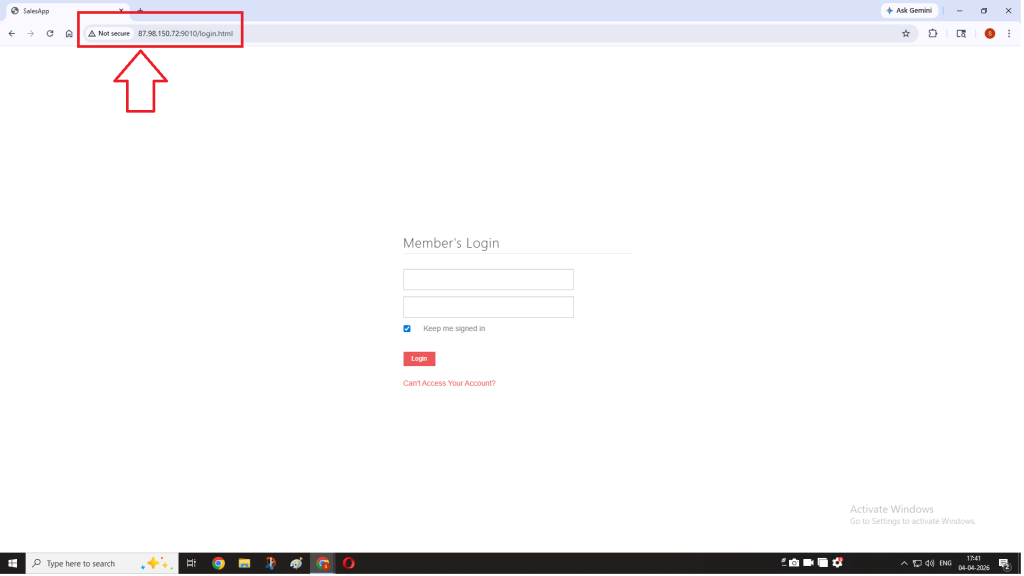
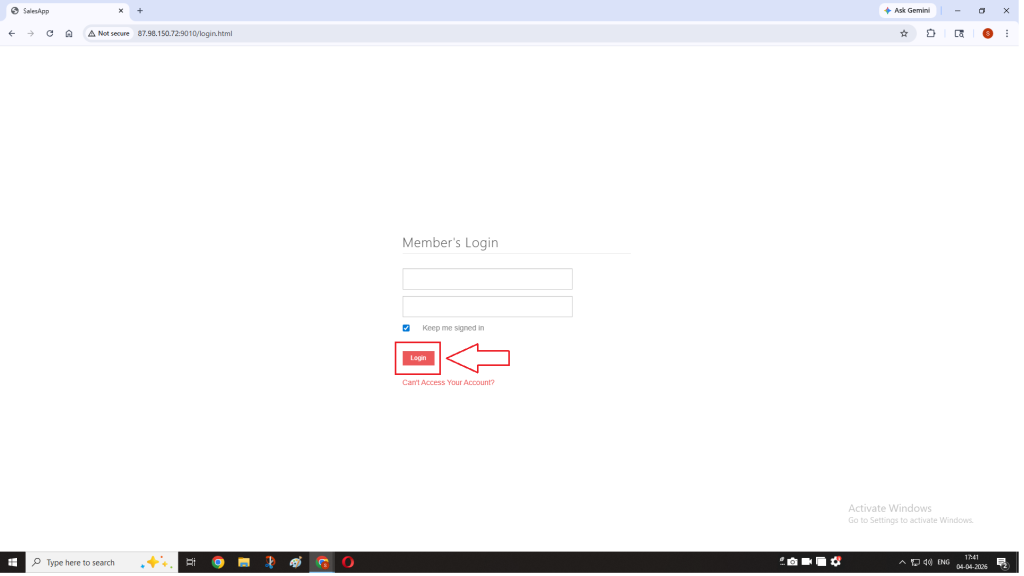
Step 2: Log in to CRM using Admin credentials.
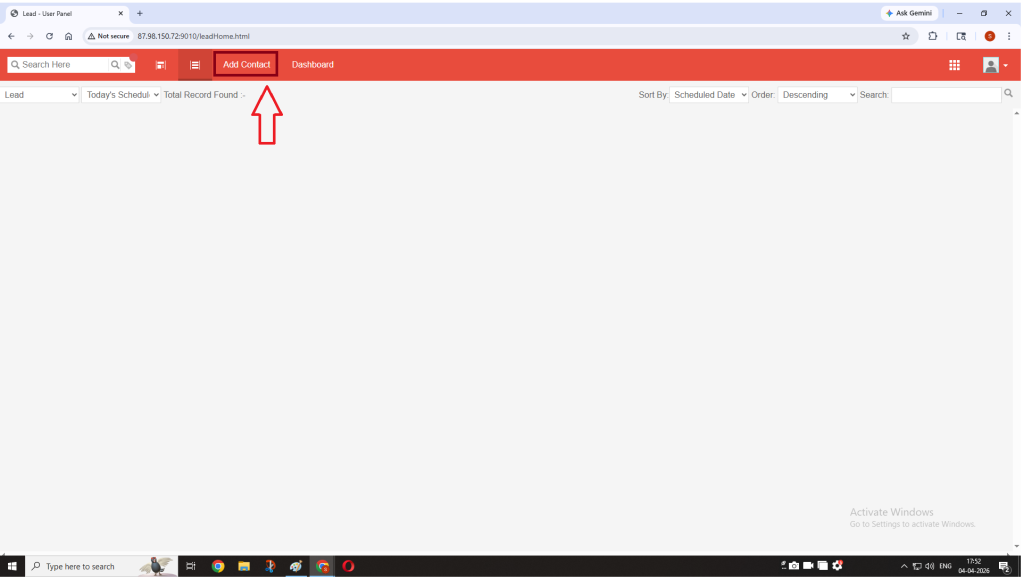
Step 3: Now click on Add Contact.
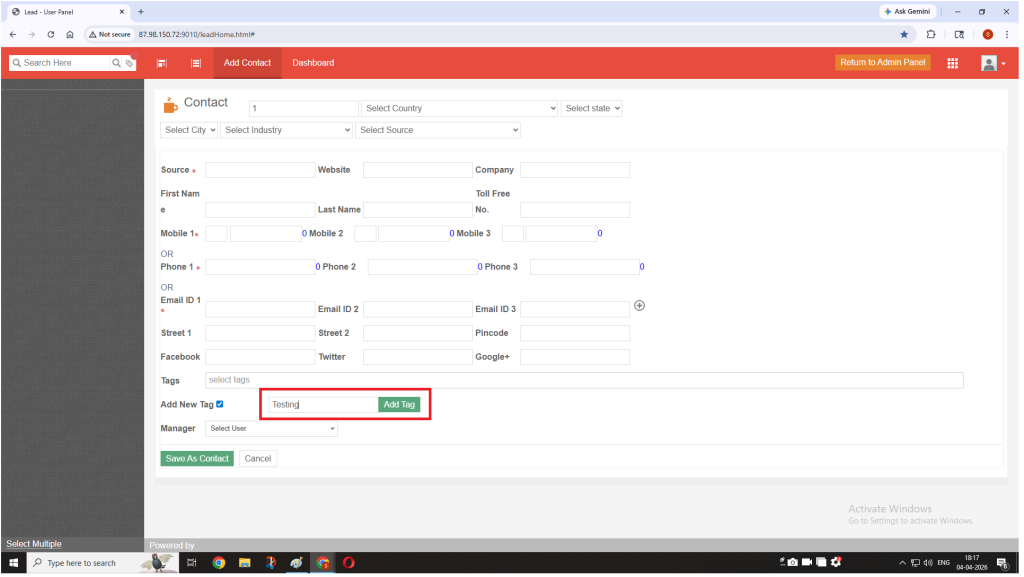
Step 4: In case of adding new tag, check the checkbox of add new tag to open the text box.
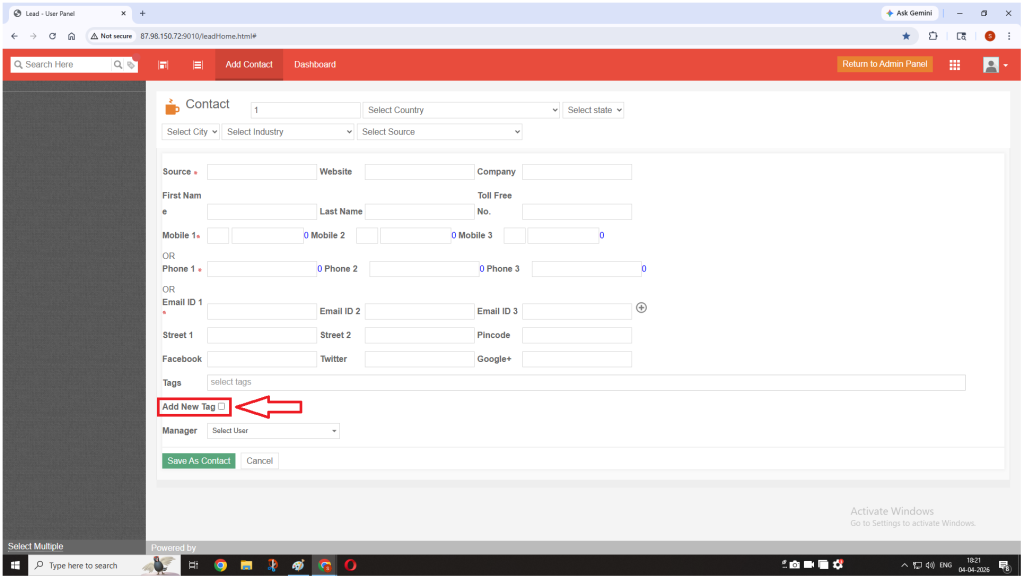
Now enter the tag in the text box and click on add tag.
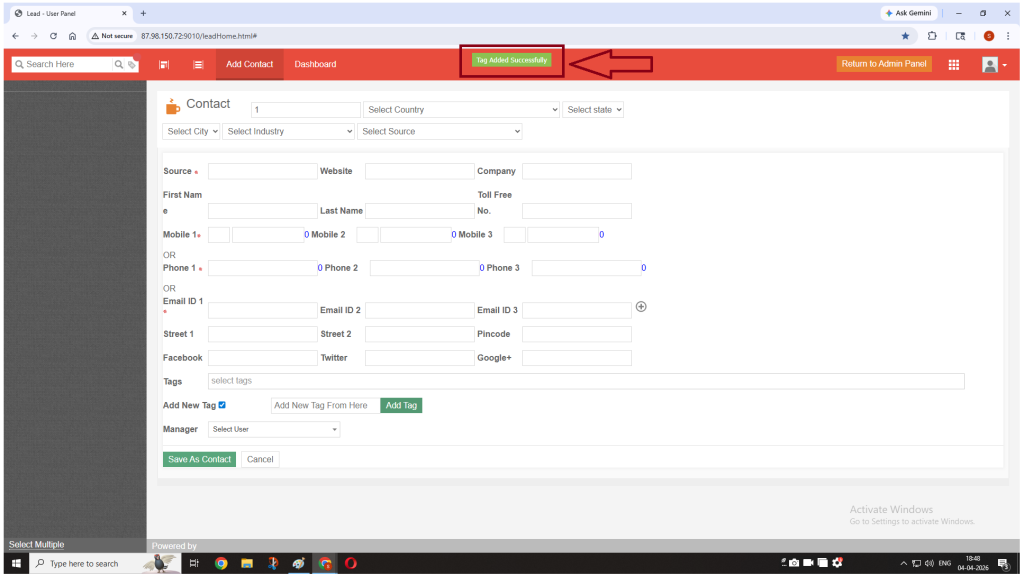
Once the tag has been added, you’ll get an alert that your tag has been successfully added.
And if your tag is already created before, then you will get that your tag already exists.
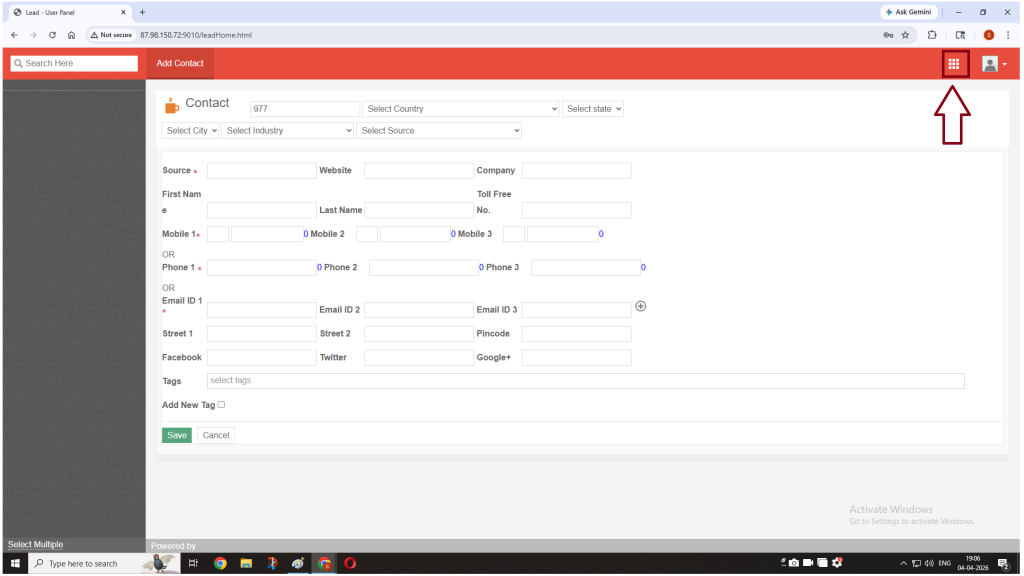
Step 5: Now click on the boxes in the top right corner near the profile icon.
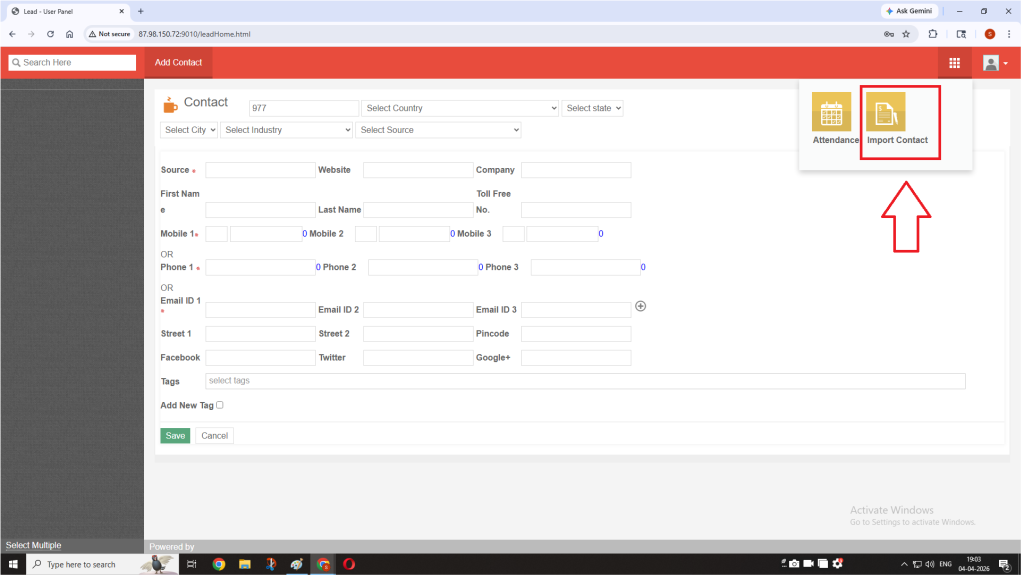
Click on Import Contact.
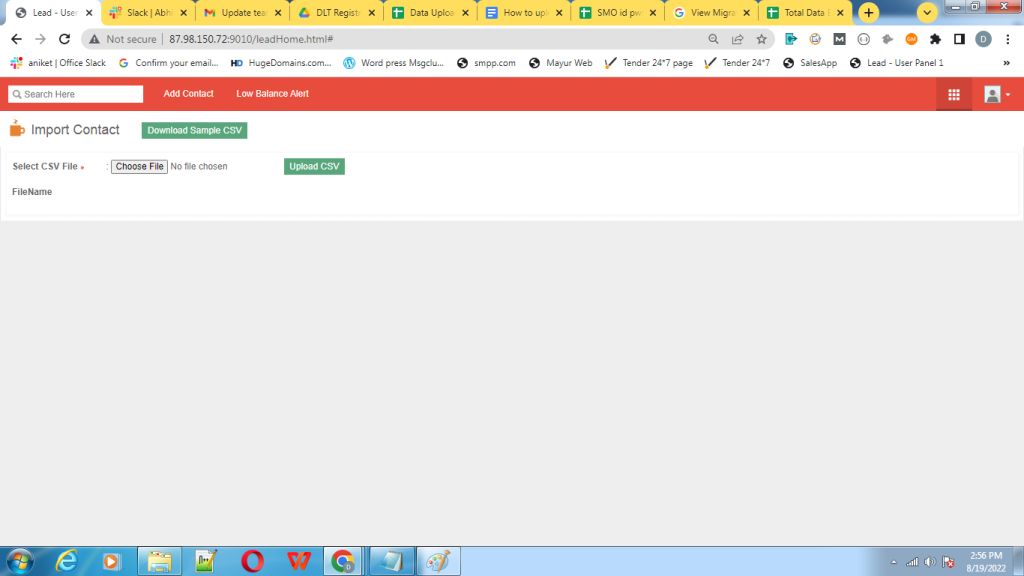
Step 6: Now, click on choose file to upload the csv file.
Step 7: Now select the file you wan to upload on CRM & click on Open button.
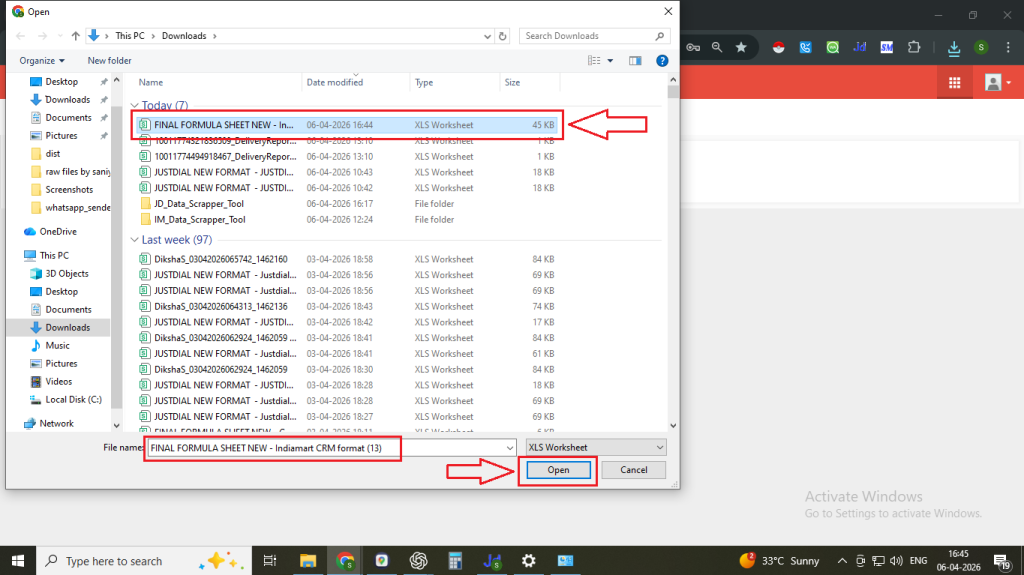
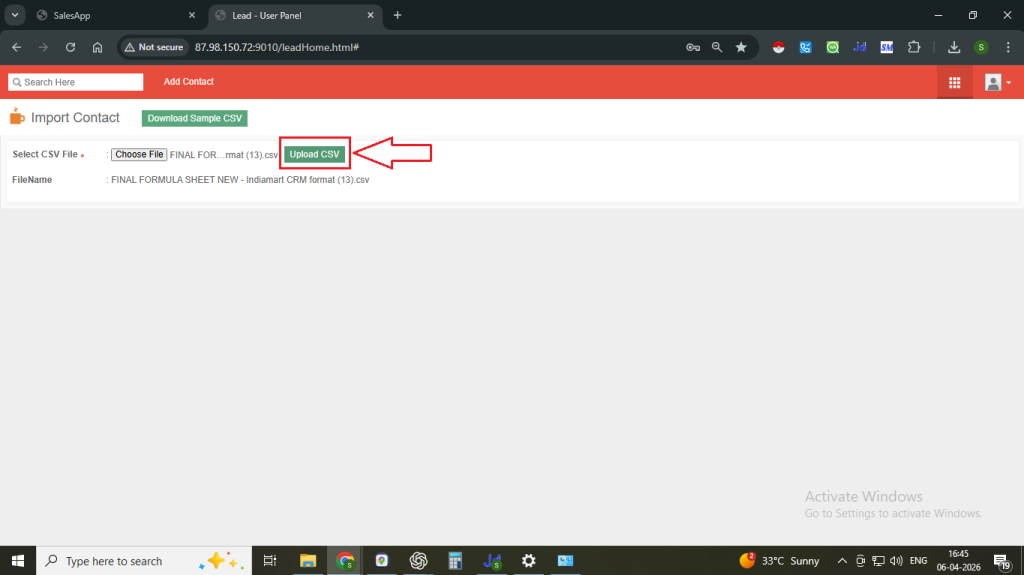
Note: Supported file format – Comma-separated values (.csv)
Once selected, click on Upload CSV button to upload the file.
Step 8: When your data will be uploaded you get a count of Fresh data, Duplicate data and Remaining date(not uploaded).
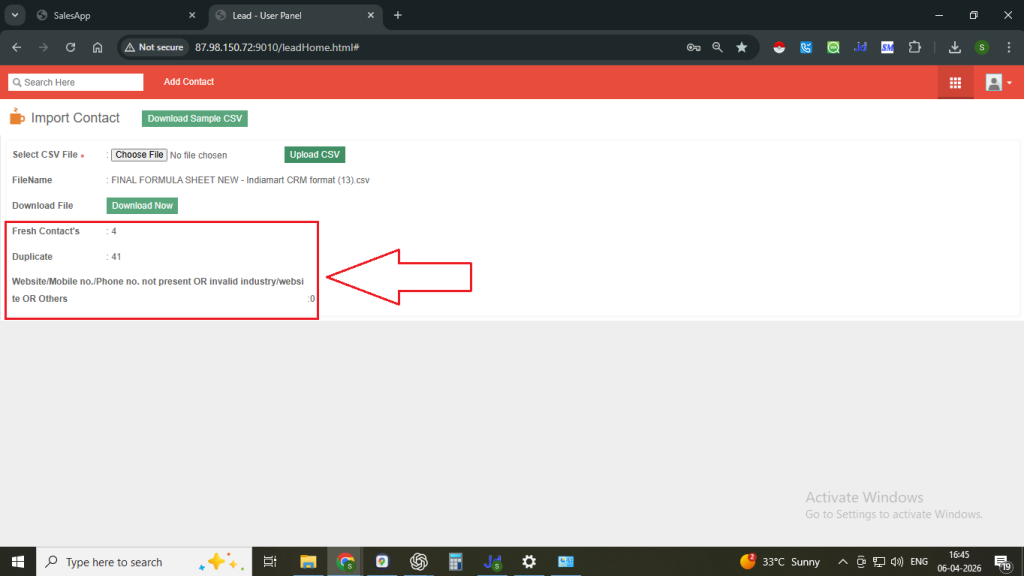
Step 9: To get status of data uploaded & CIDs, click on Download Now button.
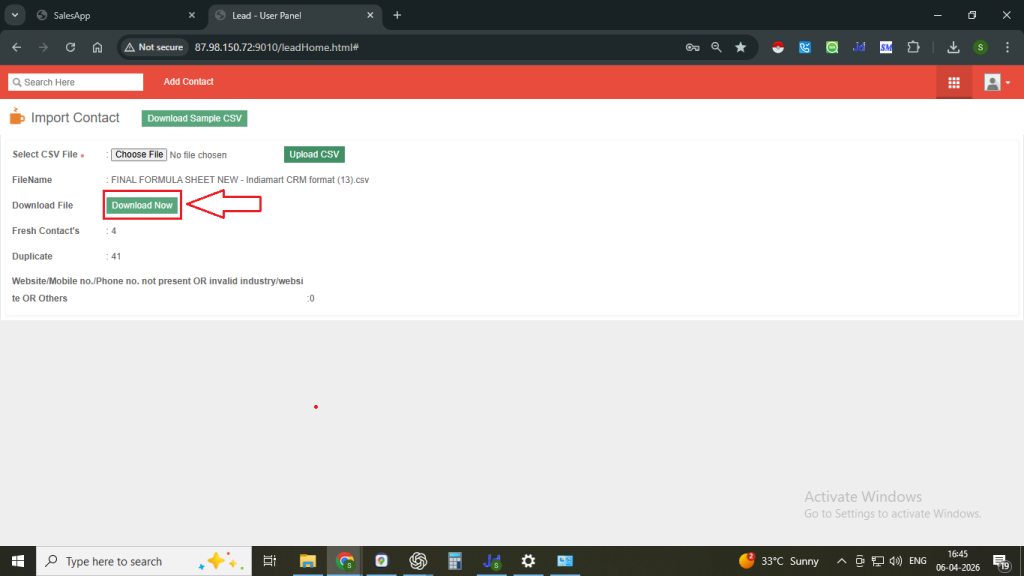
Step 10: Now the file downloaded will be exactly same to the file uploaded, following columns will be added –
- STATUS
- CONTACT ID FOR DUPLICATE DATA
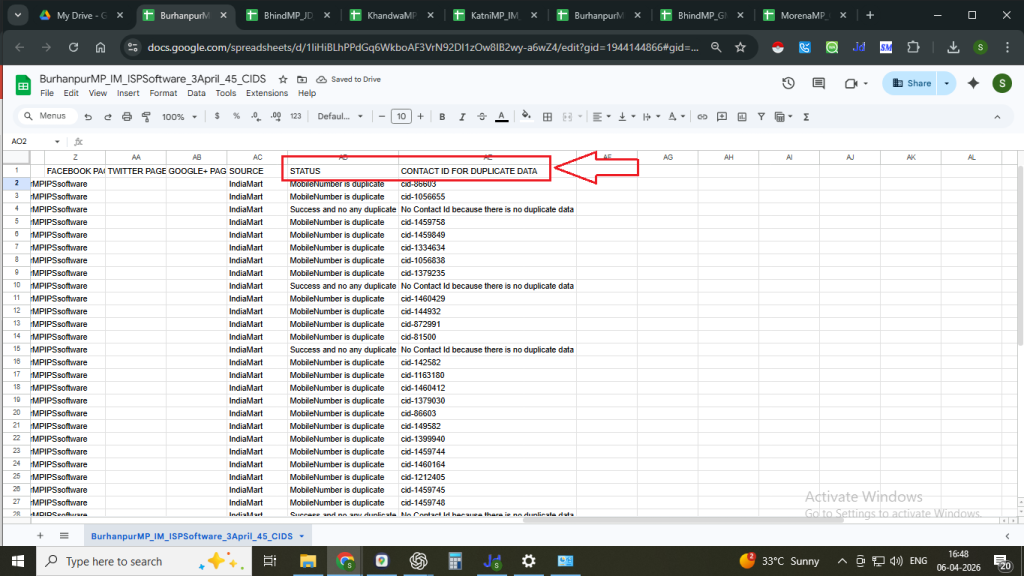
This will help you know the exact status of your data and identify the duplicate fields.
FAQs
Q. What file format is supported for uploading data?
Ans. Only CSV (Comma-Separated Values) files are supported for uploading contacts into the CRM.
Q. Can I add tags while uploading contacts?
Ans. Yes, you can create and assign tags before uploading. You also have the option to add a new tag during the process.
Q. What happens if I try to create a tag that already exists?
Ans. You will receive a notification indicating that the tag already exists, and it will not be duplicated.
Q. How can I check if my data was uploaded successfully?
Ans. After uploading, the system shows:
- Fresh data (new entries)
- Duplicate data
- Remaining data (not uploaded)
Q. What is the purpose of downloading the upload report?
Ans. The downloaded file provides detailed insights, including:
- Upload status
- Contact IDs for duplicate entries
Q. Why is some data marked as “Remaining”?
Ans. This typically happens due to formatting issues, missing fields, or invalid data in the CSV file.
Q. Can I re-upload the remaining or failed data?
Ans. Yes, you can correct the errors in the CSV file and upload it again.
Q. Is there a limit to the number of contacts I can upload?
Ans. This depends on system configuration. For large datasets, it is recommended to upload in batches.
3 comments
Comments are closed.