
When working with duplicate data, assigning contacts accurately becomes important to avoid confusion and repeated efforts. MSGClub CRM provides Contact IDs (CIDs) that help you identify and manage duplicate records efficiently.
By using CIDs, you can directly search and assign specific contacts while ensuring that already assigned data is not reassigned. This helps maintain clarity, improves data handling, and ensures a smooth workflow for the sales team.
Learn More
Step by Step Guide
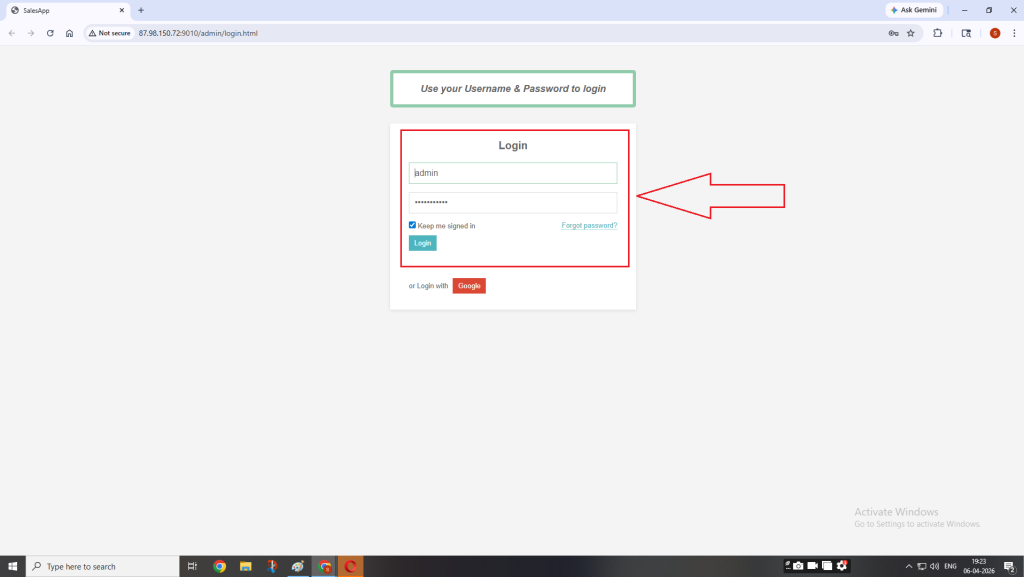
Step 1: Login to Admin Panel
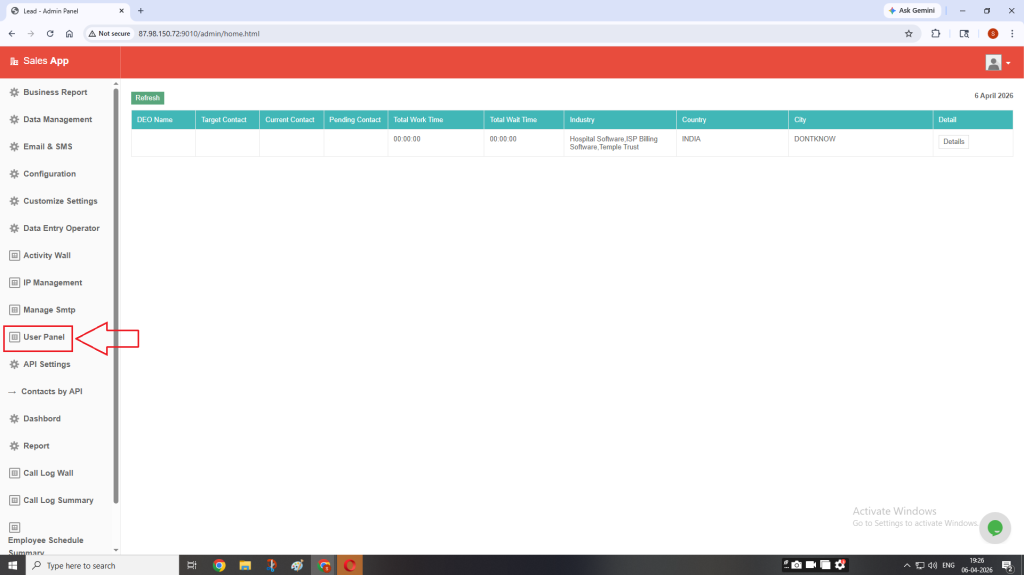
Step 2: On the left-hand side menu, click on User Panel.
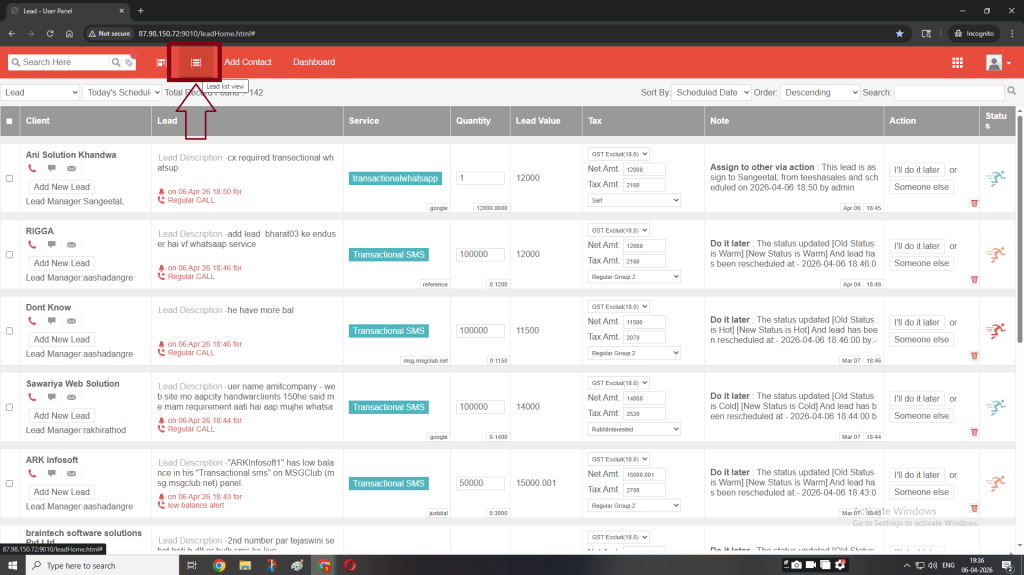
Step 3: Click on the Lead List View icon to see all the contacts.
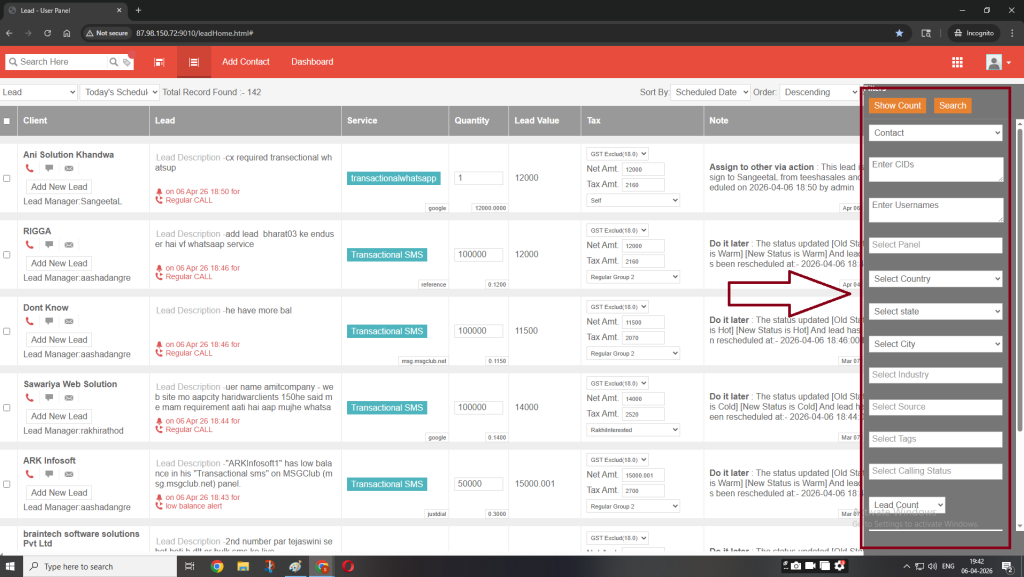
Step 4: Click on the Search bar.
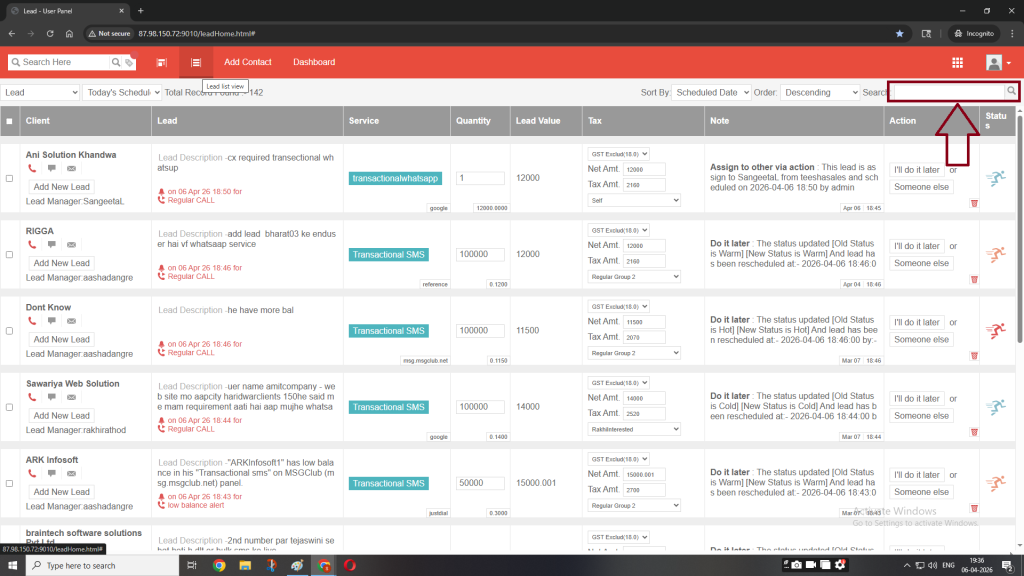
Here you can search the data through various filters
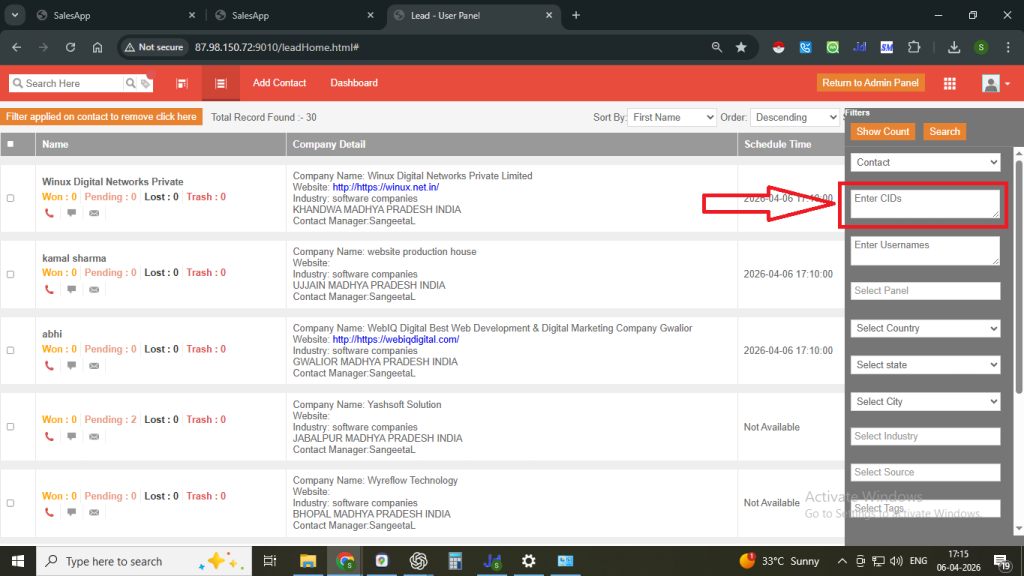
Step 5: Copy all the CIDs of the duplicate data file and paste them in the Enter CIDs field.
Step 6: Then click on Search button.
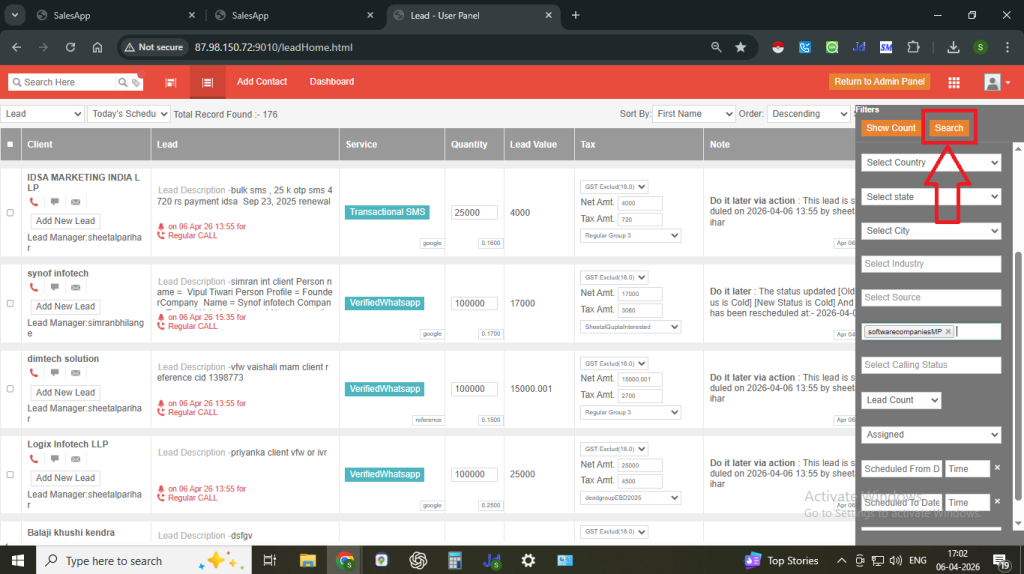
You will see all the records of the CIDs.
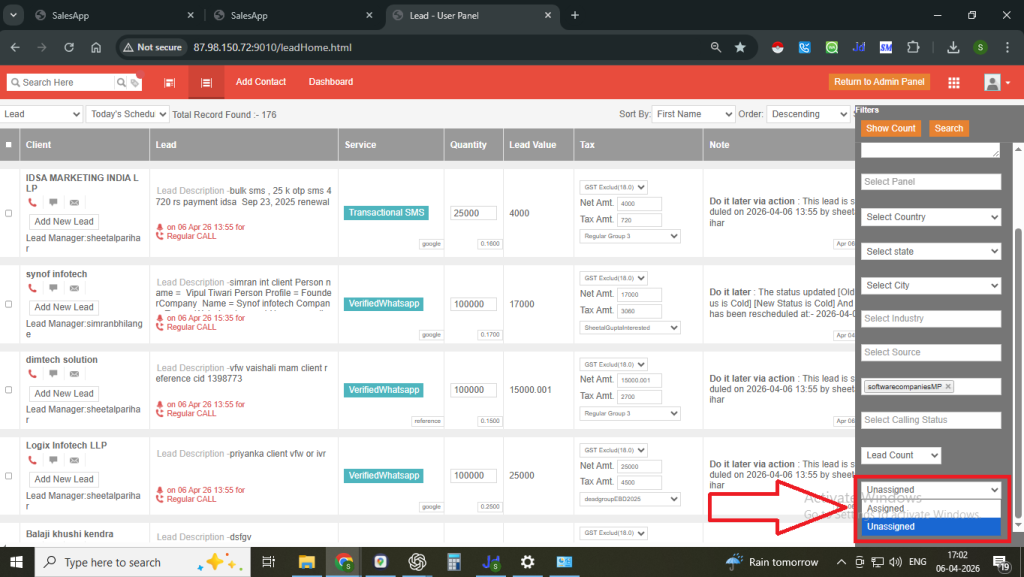
Step 7: Select Unassigned if the data is new or select Assigned if the data is already assigned to someone.
Step 8: Select the contacts you want to assign and then click on the ACTION button.
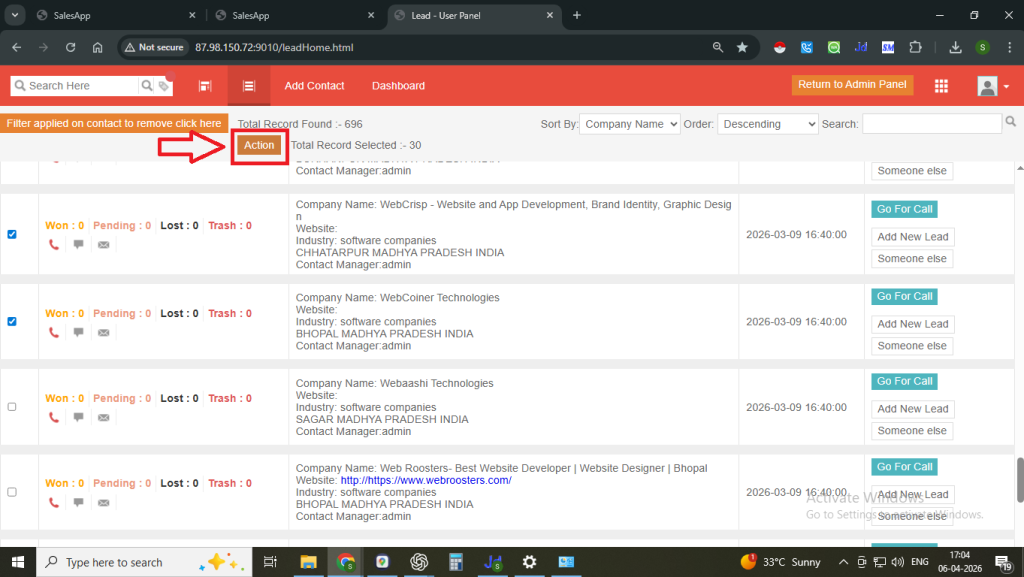
Now click on Yes to proceed.
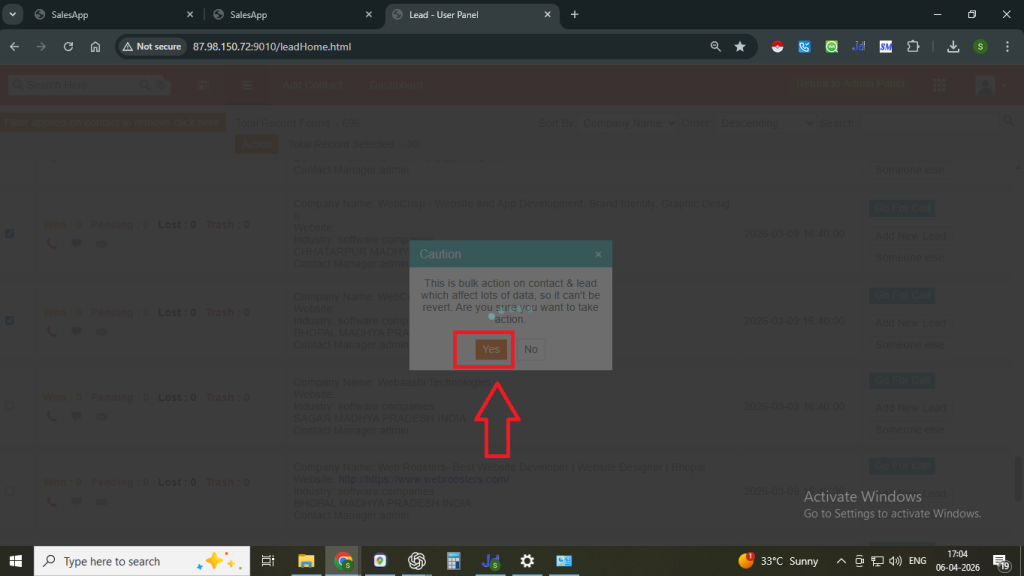
Step 9: Click on the Add Tag check box and enter a new tag with the person’s name
Example: sangeetascMP6april
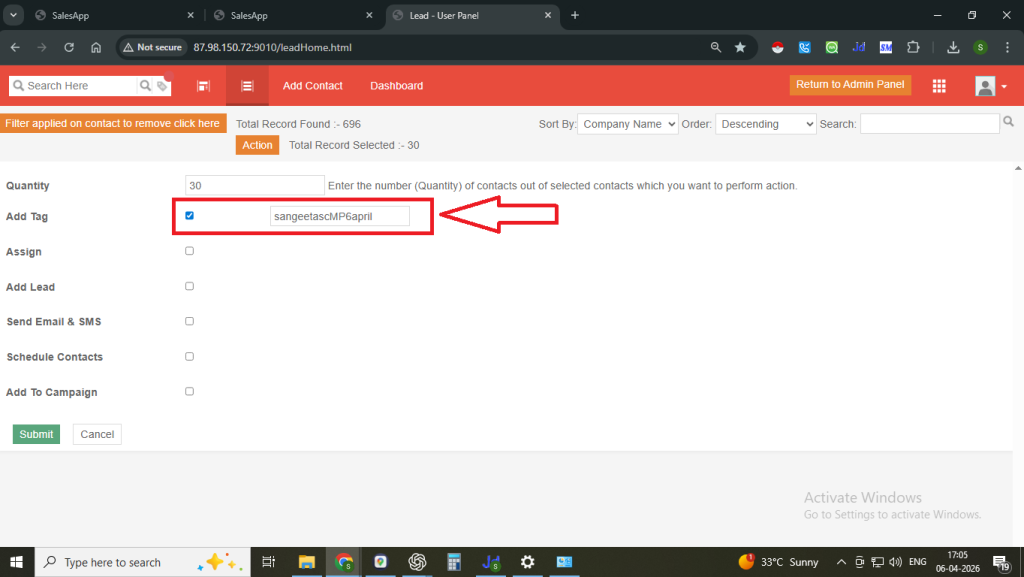
Step 10: Click on Assign and Schedule Contact.
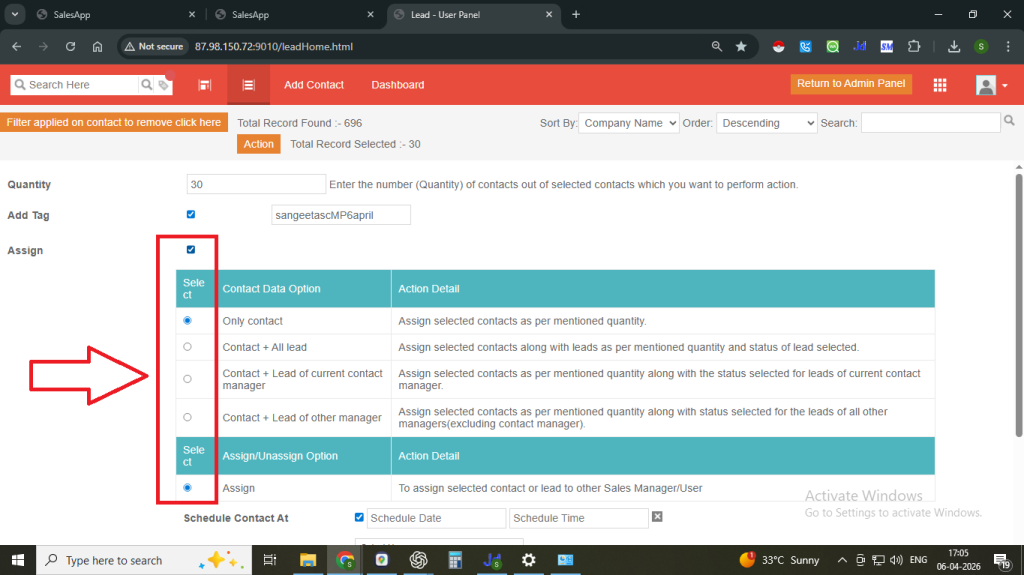
Step 11: Select the date and time to schedule unassigned leads at.
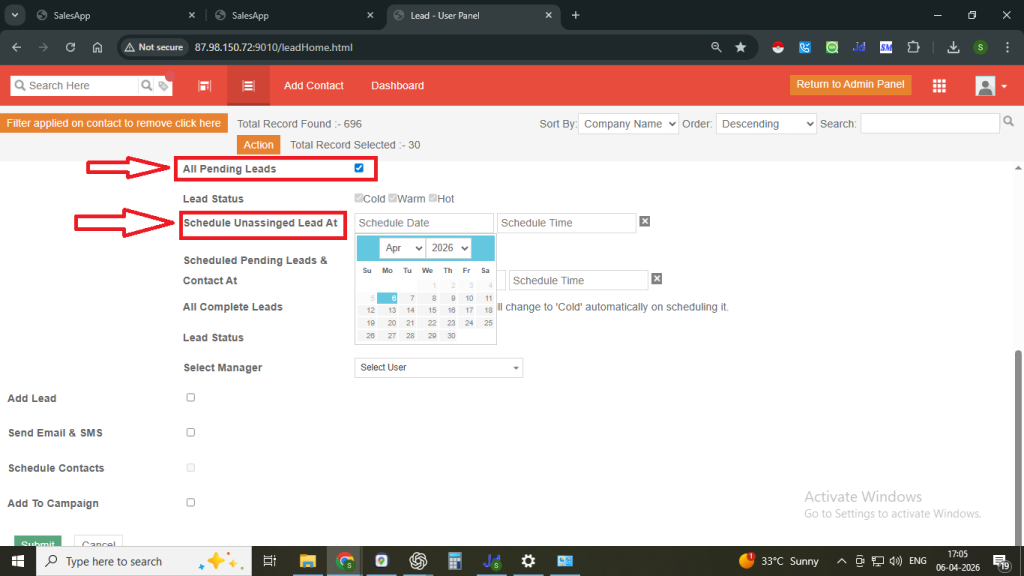
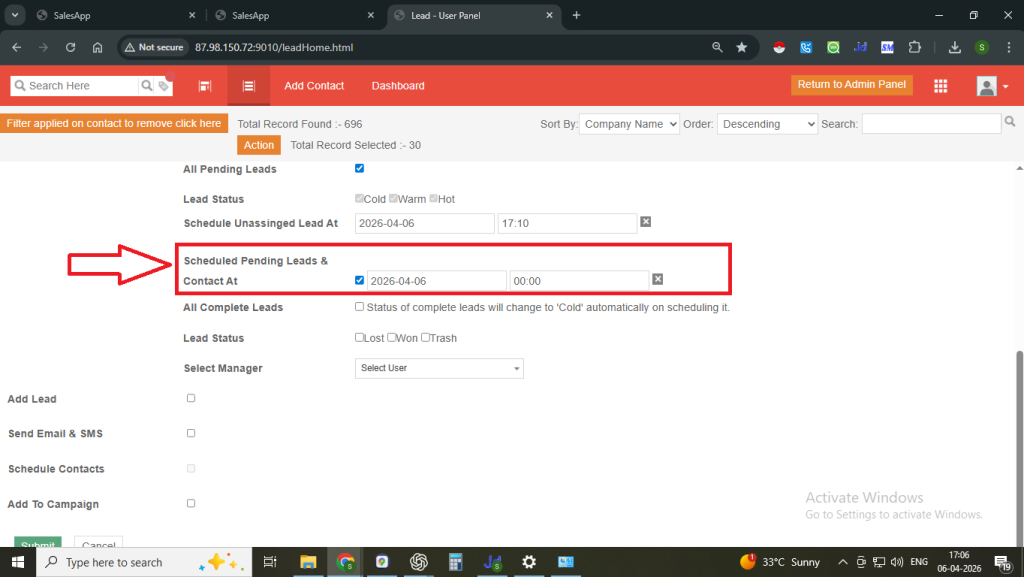
Also select the date and time to scheduled pending leads & contacts at.
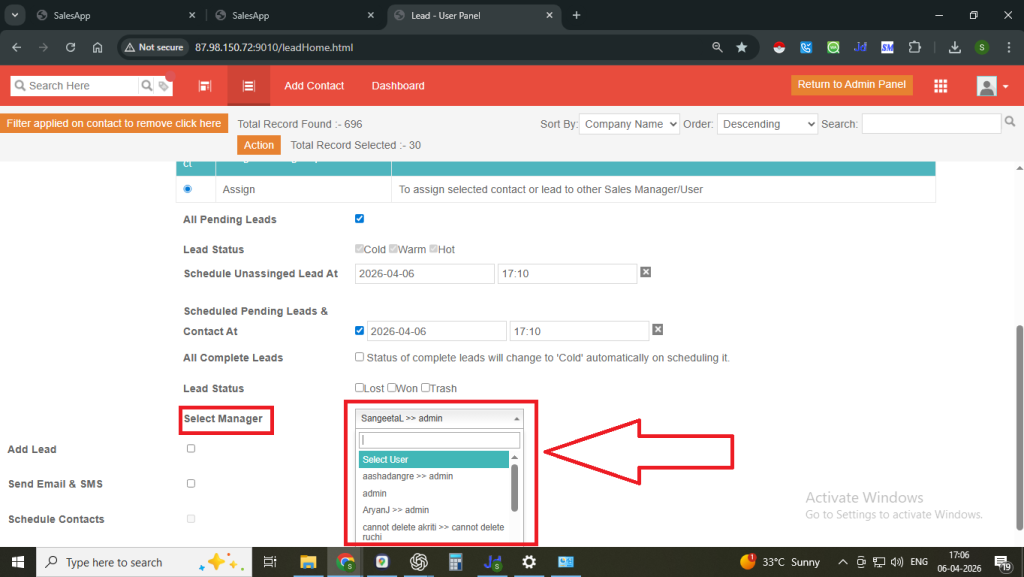
Step 12: Choose the Manager from the dropdown (the person to whom you want to assign the data).
Step 13: Click on the Submit button.
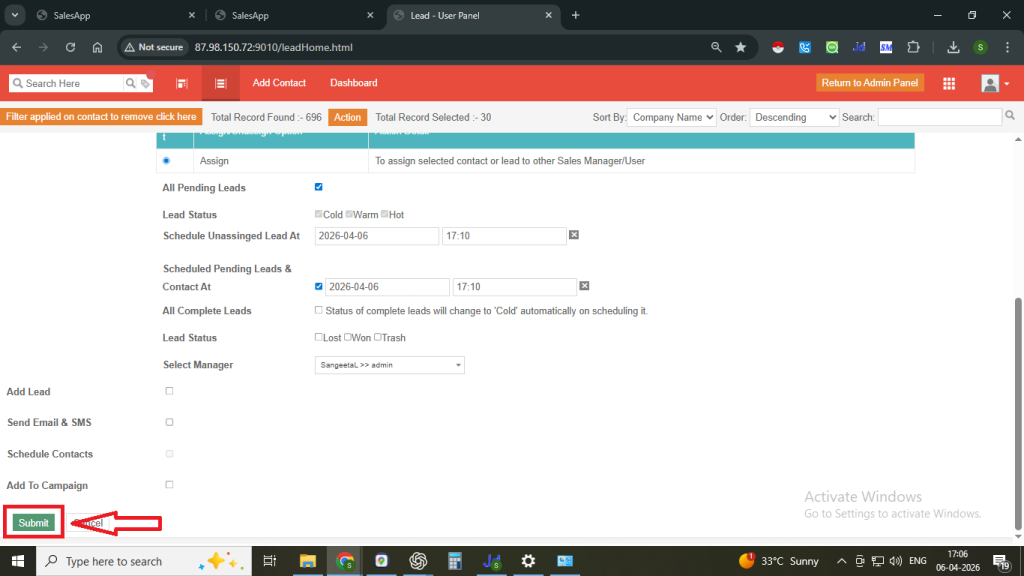
Once you click on submit, a successful pop-up message will appear on the top.
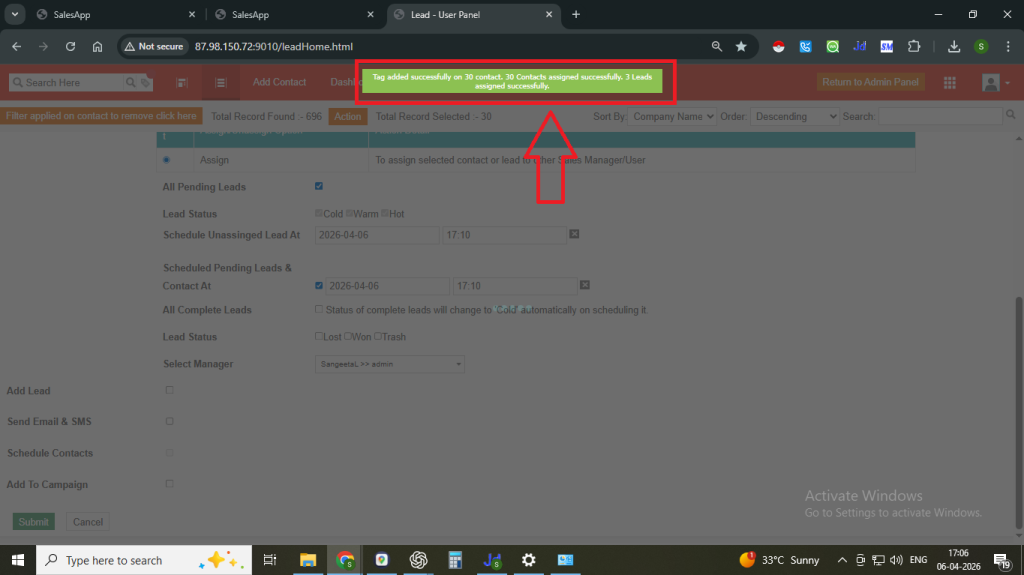
The data will now be assigned and will appear on the sales manager’s dashboard.
Note:
- Maintain a Data Assignment Sheet to track all assignments.
- The sales team should fill the Calling Data Request Form.
- Based on the request, assign the data and record the tag name and data count in the Calling Data Request form (Responses) sheet and also need to create the entry against it in the same sheet.
FAQs
Q. What are CIDs in CRM?
Ans. CIDs (Contact IDs) are unique identifiers assigned to each contact in the CRM.
Q. Why should I use CIDs for data assignment?
Ans. CIDs help you accurately identify duplicate records and assign them without confusion.
Q. How do I assign data using CIDs?
Ans. You can copy the CIDs, paste them into the search bar, and follow the standard assignment process.
Q. Can I assign multiple CIDs at once?
Ans. Yes, you can paste multiple CIDs together in the search bar to assign them in bulk.
Q. What should I check before assigning data using CIDs?
Ans. Always verify if the contact is already assigned to someone to avoid duplication.
Q. What happens if I assign already assigned data?
Ans. It may create confusion and overlap in the sales process, so it should be only with the approval of stakeholders.
Q. Where can I find the CIDs?
Ans. CIDs can be found in the downloaded upload report under the column “CONTACT ID FOR DUPLICATE DATA.”
Q. Is CID-based assignment better than tag-based assignment?
Ans. CID-based assignment is useful for handling duplicate or specific records, while tag-based assignment is better for bulk grouping and filtering.