
WhatsApp team inbox: every agent on one number
Stop passing one phone around the office. Sales, support and accounts answer customers from a shared inbox on your WhatsApp Business number, with assignment, labels, notes and quick replies, on the web or the mobile app.
- Many agents, one number
- Assign and transfer chats
- Shortkey quick replies
- Web panel and mobile app

What is a WhatsApp team inbox?
A WhatsApp team inbox is a shared dashboard where several agents answer customers from one WhatsApp Business number at the same time. Built on the WhatsApp Business API, it lets a team assign chats, add labels and internal notes, use saved quick replies and see who is handling each customer.
Updated
Team inbox at a glance
- Agents
- Many agents on one WhatsApp Business API number
- Routing
- Manual assignment, transfer between agents and teams, bot handover
- Organising
- Labels, internal notes, mine, unassigned and all views
- Speed
- Shortkey quick replies, templates, media and documents
- Access
- Web panel and mobile app, with admin and agent roles
- Integration
- Webhooks and API to your CRM
Why do teams outgrow the WhatsApp Business app?
The app works when one person answers every chat. Once several people share a number, problems start.
| With one shared phone | With the MsgClub team inbox |
|---|---|
| Two people reply to the same customer, or nobody does | Each chat is assigned to one agent, and unassigned chats wait in a queue |
| Nobody knows what was promised last week | Full history and internal notes on every chat |
| Answers vary from person to person | Shared shortkey replies and approved templates |
| The phone leaves with the employee | Agents log in and out; the number and chats stay with the business |
| Managers cannot see response times | Who handled what, and how quickly, in reports |
What does the team inbox include?
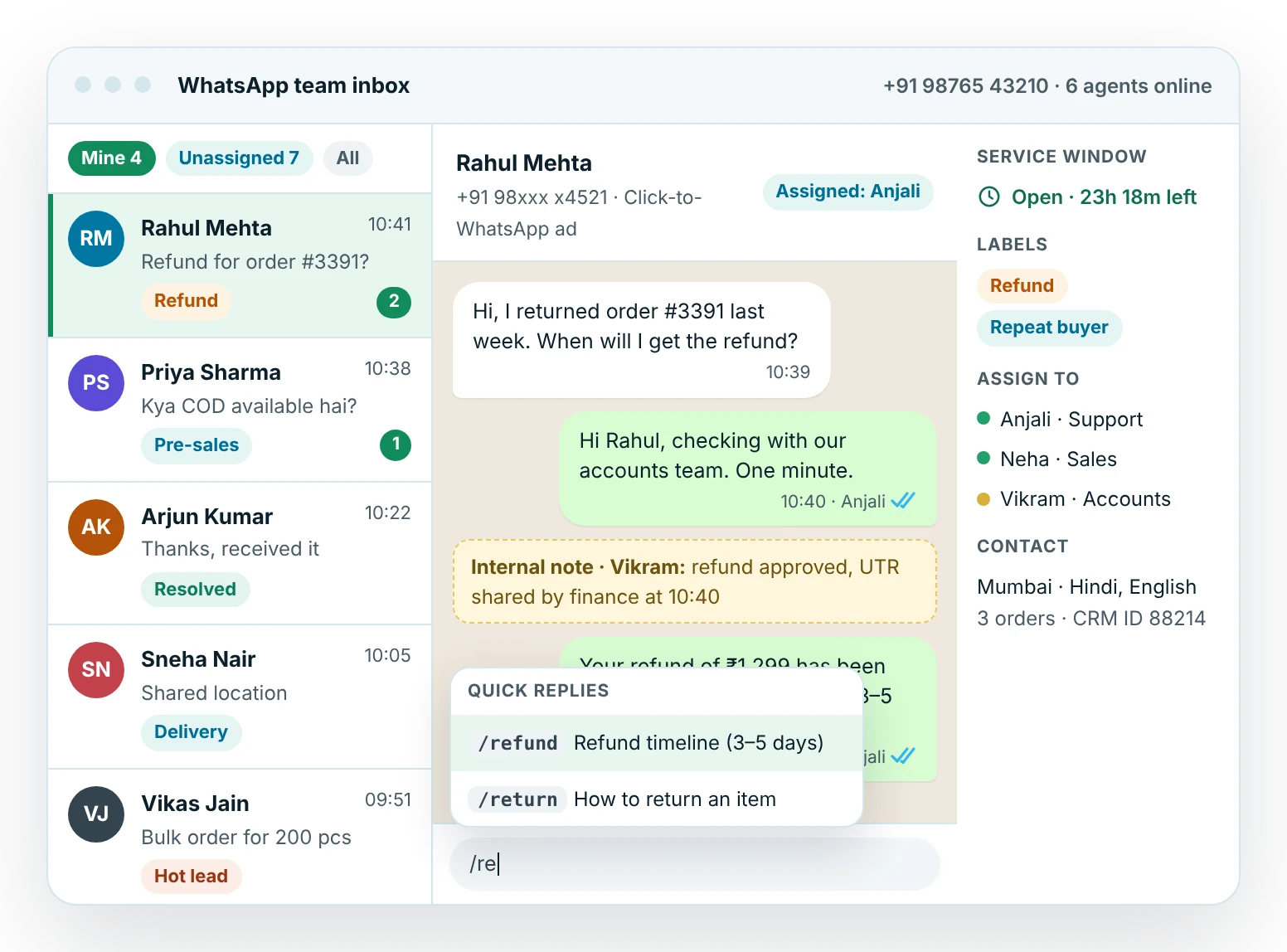
How does agent management work?
Admins add agents with their own logins, group them into teams such as sales, support and accounts, and assign chats to them. A new agent can start replying in minutes without touching the business phone.
- Separate admin and agent logins
- Mine, unassigned and all-chats views so each agent knows what to pick up
- Remove an agent's access instantly when they leave
- Reports on chats handled and replies sent per agent
Where do chats come from?
Every route into your number lands in the same inbox: replies to broadcasts and notifications, Click-to-WhatsApp ads, QR codes at your store, chat links on your website, and handovers from your WhatsApp chatbot. The source is shown on the chat, so sales knows which campaign brought the lead.
Replies to your marketing campaigns are where most sales happen, so many teams route them straight to the sales queue.
How do you run good WhatsApp support with a team?
The inbox gives you the tools. A few habits make the difference customers notice.
Connect the inbox to your CRM
Keep your CRM as the record of every customer while agents work in the inbox.
Agent replies and status events (message.sent, message.delivered, message.read) can follow the same path. See the WhatsApp API and integrations pages, or check pricing for agent seats.
Frequently asked questions
How many agents can use one WhatsApp number?
With the WhatsApp Business API and the MsgClub team inbox, many agents can reply from one number at the same time, each from their own login on the web panel or mobile app. The WhatsApp Business app, by contrast, allows only a few linked devices. Agent seats are part of your MsgClub plan.
Can customers see which agent replied?
Customers see your business name and verified profile, not the agent's personal number. Agents can sign messages with their first name if you want a personal touch. Inside MsgClub, every message shows which agent sent it, so managers can review conversations.
What are WhatsApp shortkeys or quick replies?
Shortkeys are saved replies that an agent inserts by typing a slash and a short word, such as /refund or /timing. They keep answers consistent, avoid typing mistakes and speed up replies to common questions. Admins create and edit the shared list for the whole team.
Can agents send messages after 24 hours?
Only with an approved template. Free-form replies are allowed while the 24-hour customer service window is open, which restarts every time the customer writes. The inbox shows the time left on each chat, and once it closes the agent picks an approved template to restart the conversation.
Can I control which chats each agent handles?
Yes. Admins add agents with their own logins, place them in teams such as sales or support, and assign or transfer chats between them. When an agent leaves, the admin removes their access and their chats stay in the inbox with the full history.
Does the team inbox work with my CRM?
Yes. Inbound messages and agent replies can be sent to any CRM that can receive a webhook, and your CRM can create or update contacts through the API. Many teams connect Zoho, HubSpot, LeadSquared or an in-house system through the API, webhooks or Zapier.
Related products
Use them together from the same MsgClub account, with one API and shared reports.
Start sending in minutes
Create a free account to test the panel and API, or talk to our team about volumes, DLT setup and CRM integration.